QR Code Customer Support: In-Store and Post-Purchase
AskDolphinPublished23min read
Hard-to-find staff in-store and post-purchase questions flooding email? This playbook shows where to place support QR codes, what scans should open, and how to route chats into one shared inbox with human handover when needed.qr-customer-support
Last updated
On this page
A good support QR code doesn’t “send people somewhere”. It starts the right help conversation, instantly, without making customers download an app.
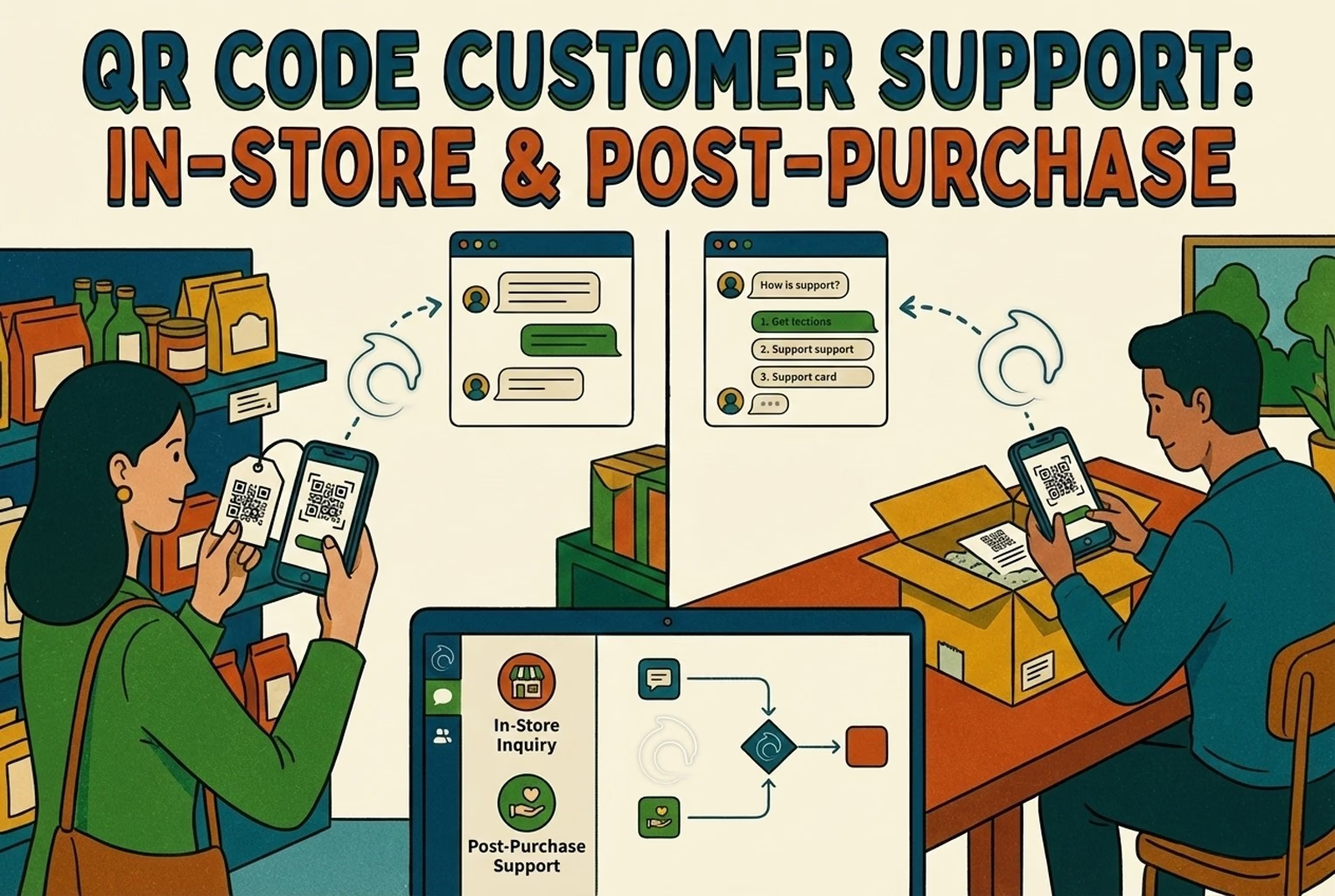
What is QR Code Customer Support? QR code customer support is a retail support system where scanning a QR code opens an instant help experience, such as setup instructions, size help, returns, or a live chat, without requiring an app.
Unlike marketing QR codes that send shoppers to a homepage, support QR codes are placed at moments of friction (fitting rooms, packaging, receipts) and route questions directly to the right team or automated help flow.
Retailers use QR code customer support to reduce staff interruptions, speed up in-store assistance, and handle post-purchase questions in one inbox.
Key takeaways:
Treat support QR codes like entry points to help, not marketing links.
Build for three moments: in-store urgency, unboxing questions, and repeat-use “how do I…?” needs.
Each QR should do one thing well. Don’t mix size help, returns, and setup into a single scan.
The first screen should let shoppers choose what they need in one tap: size help, setup, warranty, or returns.
Track what actually matters: how many scans turn into conversations, which questions come up most by product or store, and what gets resolved without staff.
Small teams win by keeping everything in one inbox, routing messages clearly, and setting response times they can actually meet.
Want the copy, signs, and routing rules? The QR Support Rollout Kit is included below, ready to copy and use.
What “QR code customer support” actually means (and why it works)
QR is not a marketing link: it’s a “help now” entry point
Most retailers already use QR codes for engagement, product details, and basic operations. What changes with QR code customer support is intent; people scan because they need help right now, not because they want to browse. Shopify’s retail guide describes merchants using QR codes for product info and manuals. Support QR codes work differently because the shopper intent is urgent, not exploratory.
Think of it like a “digital doorbell”:
It shows up exactly where confusion happens (fitting room, shelf, packaging, receipt).
It opens a short, structured path (“What do you need?” then “Here’s the answer” then “Chat with staff if needed”).
It’s trackable, unlike random DMs and forwarded WhatsApps.
If your QR goes to the homepage, you’ve made the customer do homework.
This problem shows up when store teams find they are answering the same questions all day, sizes, setup, returns, across the floor, DMs, and email. QR support didn’t replace staff; it removed the interruptions.
The 3 support moments: in-store, unboxing, repeat use
Support QR codes work because they match when customers actually ask questions:
In-store (urgent and high friction)
“Do you have this in another size?”
“Is there someone who can help me choose?”
“Is this in stock at Store B?”
Unboxing (peak confusion)
“How do I set this up?”
“What’s the warranty?”
“What’s included, or am I missing a part?”
Repeat use (low-grade support noise)
“How do I clean this?”
“How do I replace the filter?”
“How do returns work again?”
When you design QR support around these moments, you reduce the “support scatter” that eats small teams alive.
Where QR support pays off fastest (real retail scenarios)
Fitting rooms, size help, and “Is this in stock?”
Scenario: Boutique apparel (1–2 staff on the floor)
QR placement: Inside each fitting room, plus a small shelf talker near the denim wall.
What the landing screen shows (first view):
“Need a different size or color?”
Buttons: Another size, Style advice, Check stock (other stores), Talk to staff
Optionally, add a simple “What are you trying on?” dropdown (denim, dresses, tops).
What staff does next:
The chat goes to Store A and is marked as a Fitting Room request.
Staff gets a crisp request: “Size 28 in Black, same fit.”
If staff is busy, the system replies immediately: “Got it, someone’s on the way. What size do you need?”
Why it pays off: Bitly calls out that shoppers want instant product details and help in-aisle; QR can turn “hesitation” into action by reducing friction.
Do this in the real world
Put a tiny label on the mirror: “Need a size? Scan. Don’t get dressed again.”
Keep the workflow tight: you’re not building a chatbot museum, you’re moving product.
Product setup and care instructions (post-purchase)
Scenario: Consumer electronics and small appliances
QR placement: On the quick start card in the box, and a small label near the serial number on the packaging.
What the landing screen shows:
“Set up in 3 minutes.”
Buttons: Setup video, Troubleshoot, Spare parts, Talk to support
A short FAQ for common questions like Bluetooth pairing, charging, resets, and app connection.
What staff does next:
“Setup” questions can get an AI first reply with the steps.
If the customer taps “Still stuck,” it escalates to a human with context, including the product and the last steps tried.
Packaging QR codes are commonly used to deliver product details, usage instructions, and care tips, so customers get help without searching.
Warranty, authenticity checks, and missing parts
Scenario: Beauty, supplements, and premium goods where authenticity matters
QR placement: On a tamper-evident seal or inside the box flap (not just on the exterior).
What the landing screen shows:
“Verify authenticity”
“Register warranty”
Something missing or damaged?
How to use it and safety tips
What staff does next:
If something’s missing, route it to post-purchase fulfillment instead of the store team.
The form only asks for what’s necessary like the order number, a photo, and the type of issue.
GS1’s guidance on QR codes powered by GS1 explains that a single QR can both identify a product and act as a gateway to digital information, useful for things like batch or lot data and serial numbers.
Returns and exchanges: start here if you need help
Scenario: An omnichannel retailer dealing with returns chaos across DMs, email, and in-store questions.
QR placement: At checkout counter, printed on receipts, and on the bag insert.
What the landing screen shows:
“Start a return/exchange.”
Buttons: Return policy, Start return, Exchange size, Store hours
A simple selector asking whether the purchase was made online or in-store.
What staff does next:
Returns are routed away from the sales floor: Returns queue with SLA rules.
In-store staff can still assist, but they’re not triaging policy questions all day.
Best practice QR design so people actually scan
Placement rules to get right: sightline, lighting, height, and keeping each QR focused on a single task.
Use these placement rules as your default:
Sightline: Put the QR where the question happens (mirror, shelf edge, unboxing card).
Lighting: Avoid glossy reflections and deep shadows (especially in fitting rooms).
Height: Chest/eye level beats ankle level.
Distance: If it’s read from 1–2 meters, it needs to be bigger than you think.
One QR, one job: a fitting room QR should not also be your loyalty signup.
Shopify’s retail QR guide highlights common pitfalls with QR codes, most of which come down to poor placement, unclear intent, or sending people to the wrong destination, as Shopify explains in its guide to QR codes in retail.
Common mistakes:
QR code goes to the homepage (customers bounce).
One QR tries to do five things (customers freeze).
The sign says “Scan me” but doesn’t say why.
The landing page is not mobile-first (tiny text, slow load).
Staff doesn’t know the QR exists (so it doesn’t get answered).
No ownership: returns questions land in the same place as store questions.
Landing experience: don’t make them hunt (go straight to the answer path)
Your landing page should feel like a “support menu,” not a website.
Minimum viable landing layout should be like this:
Start with a simple “How can we help?” headline, offer no more than four clear options (size and stock, setup, warranty, or returns), and always leave a clear way to talk to a person.
Bitly highlights how QR codes give shoppers instant access to product details and interactions; support QR codes follow the same idea, but with a service-focused outcome, as Bitly explains in its guide to using QR codes in-store.
Packaging QR codes shouldn’t send customers to generic pages; make them product-specific where possible.
When someone scans a product QR code, they expect information about that specific product, and according to GS1’s QR code best practices, the experience should not force them to search or click around to find what they need.
For packaging QR codes, make the destination as product-specific as possible, ideally pointing to setup, care, and warranty information for that exact SKU or product line.
If SKU-level routing isn’t practical, route at least to the correct product category (for example, hair tools versus skincare), and keep the journey updateable so instructions can be fixed or improved without reprinting packaging.
And keep an eye on where packaging is headed, GS1 US’s Sunrise 2027 guidance describes the industry shift toward data-rich 2D barcodes that can serve both supply chain needs and consumer information from the same code.
A single-inbox workflow for small teams
Routing by product, location, and issue type
Small teams don’t lose because they can’t answer questions. They lose because questions arrive in too many places.
Your QR support workflow should route on three dimensions:
Issue type (size, setup, warranty, return)
Location (Store A, Store B, Online)
Product (optional but powerful)
A simple routing map
Store QR codes are tagged as Store A or Store B
Packaging QR codes are tagged as Post-purchase
Returns QR codes are tagged as Returns
Setup QR codes are tagged as Setup
This is exactly the idea behind AskDolphin’s QR support approach, which focuses on turning any scan into a chat, routing conversations into a single team inbox, and organizing support by product or location.
Start in the customer’s language, hand off to a person when needed
If you sell to tourists or multilingual communities, the first reply matters. Even a short message in the customer’s language reduces drop-off:
“Got it, tell us what you need.”
“We can help with returns, setup, or warranty.”
With AskDolphin, you can enable Dolphin AI to answer QR chats from your approved knowledge, and set the language it replies in, so shoppers get a useful reply instead of waiting for staff. Grounded that way, AskDolphin’s QR code customer support covers common questions like setup, sizing, or returns, and hands the conversation over to your team when a human decision or follow-up is needed, without losing context or making the customer repeat themselves.
Minimum viable SLA for in-store vs post-purchase
When setting response times, don’t over-engineer your SLA. An SLA, or service-level agreement, is simply a shared expectation for how quickly someone should hear back, not a rigid promise to fully solve the issue instantly.
Start with targets your team can realistically meet:
For in-store QR scans, acknowledge the message within a few minutes even if the full answer comes later.
For post-purchase QR support, aim for a first reply the same day (or the next business day if your team is very small).
The key is an automatic acknowledgement paired with a clear expectation, such as “We’ll reply within X,” or “If you’re in the store now, let us know your fitting room number,” so customers know what’s happening and staff know what good response time looks like.
Analytics that actually matter (simple and merchant-friendly)
The scan-to-chat start rate measures how many scans result in a chat start
One simple metric that can tell you whether your QR placement and CTA are working is how often a scan actually turns into a chat. (A CTA, or call to action, is the short prompt that tells people what to do next, like “Need help? Scan here.”)
If scans are high but few people start a conversation, something is breaking down: the sign may not be clear about what the scan does, the landing page might feel slow or confusing, or shoppers may not trust where the QR is taking them.
Because AskDolphin tracks QR scans at the individual code level, it’s easy to see which placements are actually working and monitor this metric by location or use case.
Top questions by product or location
This is where QR support really pays off. Seeing the most common questions by product or store quickly shows you what’s confusing customers and where small fixes can make a big difference.
“Top 3 fitting room questions”
“Top 3 unboxing issues by product line”
“Returns reasons by store”
That makes it clear what needs fixing, from signage and instructions to training or packaging:
signage,
product instructions,
staff training,
policies and packaging inserts.
“Resolved without staff” tag
This is your biggest time saver metric. By tagging conversations that are handled without a staff response, you can quickly see which questions are being answered through self-serve support and where your team is actually spending time:
Resolved (self-serve) means the customer got what they needed from automated answers or help content without a staff member stepping in.
Resolved (staff) covers conversations where someone on your team had to reply or take action to close the issue.
Needs follow-up flags anything that isn’t finished yet, cases waiting on more information, a replacement shipment, or a later response, so nothing falls through the cracks.
Then look at it weekly and ask yourself:
Which products are self-serving well?
Which ones are generating human load?
Compliance and trust (don’t make QR feel creepy)
What to disclose on the QR landing page (tracking + privacy basics)
QR support works only if customers trust it.
When someone scans a support QR code, they should immediately understand what’s going to happen next. Use one short screen to explain that the scan opens a support chat or help page, what kind of information you may collect to route or answer the request, and how that data is used. Keep it simple and human, let people know you may track basic usage (like which QR was scanned) to get them to the right place faster, link clearly to your privacy policy, and reassure them that you’ll never ask for sensitive information like passwords or payment details.
What happens after they scan: “This opens a support chat.”
What you track: “We may track usage events tied to this QR so we can route you to the right page and improve support.”
A link to your privacy policy.
A safety cue: “We’ll never ask for your password.”
To be transparent about tracking, AskDolphin’s privacy policy explains that QR scan tracking may be available where supported; treat privacy wording as subject to your policy and product settings.
Small details go a long way in making support QR codes feel safe and legitimate. Use your own brand domain for QR destinations whenever possible so shoppers recognize where they’re being sent, place QR codes on materials that are harder to tamper with (such as inside packaging or behind the counter), and keep the landing experience clean and focused, no pop-ups, no surprise redirects, and no unnecessary forms. When the scan feels predictable and professional, people are far more likely to trust it.
In practice, that means:
Using a branded domain for all QR destinations
Placing QR codes on secure, tamper-resistant materials
Keeping the landing experience simple and predictable
How AskDolphin fits (a simple setup you can do in about 20 minutes)
Turn any scan into a chat, with one team inbox and product-aware context
If you want a single support channel that works both in-store and after purchase, AskDolphin is built to connect QR scans directly to real support conversations without adding complexity for your team. Instead of sending shoppers to generic pages or scattered inboxes, the flow is designed so each scan opens the right conversation, lands in one place, and comes with enough context for your team to respond quickly and confidently.
What that looks like in practice:
Each QR scan starts a chat, so customers can ask for help the moment they’re stuck, whether they’re in a fitting room or unboxing at home.
All conversations land in one team inbox, which keeps support out of DMs, personal phones, and email threads.
Dolphin AI can answer first, drafting or sending replies from your approved knowledge once you enable it, while staff step in when a human decision or follow-up is needed.
Messages are routed and organized by product or location, so store questions don’t mix with post-purchase issues and context isn’t lost.
Per-QR scan tracking is built in, making it easy to see which placements are working and improve support over time through AskDolphin’s QR code customer support.
A basic AskDolphin setup can be done quickly without overthinking it.
Start by creating four clear QR experiences, one for fitting room help, one for setup and care questions, one for warranty or authenticity checks, and one for starting returns.
Assign each QR a default tag and queue (for example, Store A, post-purchase, or returns) so messages land in the right place automatically.
Add a couple of short quick replies, such as “What product is this about?” or “Can you share a photo of the issue?” to gather context fast.
Finally, print the codes and place them where questions actually happen.
From there, scans turn directly into support conversations through AskDolphin’s Smart QR Codes, without adding new tools or workflows for your team.
Optional Shopify product sync for product-specific QR journeys
If you’re on Shopify, product context is the real unlock, because a QR scan doesn’t just open a chat, it can drop the customer straight into the right support path for that product line. With product-aware QR journeys, shoppers see setup steps, care instructions, or warranty info that actually matches what they bought, and your team gets cleaner context instead of starting every conversation from scratch.
As part of its QR support setup,AskDolphin supports optional Shopify product syncing, which lets product QR codes automatically connect to the right product context inside the support flow. That means fewer back-and-forth questions, faster resolution, and a smoother handoff when staff needs to step in, all without changing how your team already works in Shopify.
To get started, you can install AskDolphin directly on Shopify in just a few minutes, connect your first QR code, and route your first support chat the same day. The setup follows the standard Shopify app flow, so there’s no custom development or heavy configuration. Just install, place your QR codes, and start turning scans into real support conversations.
QR Support Rollout Kit (Retail and Packaging)
This rollout kit is designed to help you launch support QR codes quickly and place them where customers actually need help. Use the checklist below to make sure each QR has a clear purpose, shows up at the right moment, and routes questions to the right place without adding work for your team.
Start by reviewing each customer touchpoint and deciding whether a support QR would reduce friction or save staff time. The goal isn’t to put QR codes everywhere; it’s to place them where questions naturally come up and help is needed immediately.
Copy/paste and check off:
Storefront or entrance
Place a “Need help fast?” QR near the entrance, at eye level, where people naturally pause.
The scan should open a simple menu: store hours, talk to staff, directions, or stock check.
Route messages to the right location using a clear tag (for example, STORE_A or STORE_B).
Sales floor and shelf talkers
Add a QR to high-consideration areas like electronics, skincare routines, or premium items.
The landing screen should focus on decision help: specs, compatibility, what’s included, or ask a question.
Tag these conversations as PRODUCT_ADVICE so they don’t mix with other requests.
Fitting rooms
Place a QR code inside each fitting room, with the room number printed next to it.
The scan should open quick options like another size, another color, style help, or talk to staff.
Tag messages with FITTING_ROOM and the room number so staff know exactly where to go.
Checkout counter
Use a dedicated QR for returns and exchanges, separate from loyalty or promo codes.
The landing page should cover starting a return, exchanging a size, the return policy, or talking to support.
Route these messages with a RETURNS tag so they don’t land with the sales team.
Receipts and bags
Print a QR with a clear promise like Setup, warranty, and returns in one scan.
Keep the landing simple with a four-option support menu and no scrolling.
Tag these conversations as POST_PURCHASE so they’re handled by the right team.
Packaging
Include a QR on the quick start card or inside the box flap, where customers see it during unboxing.
Send scans to product-specific setup, care, and warranty information, not a generic page.
Use tags like SETUP and the relevant PRODUCT_LINE to keep context clear.
2) Copy pack (12 CTAs)
These are simple, plain language prompts you can drop onto signs, packaging, or receipts to explain what a scan will do. Copy them as-is and use them wherever customers typically pause, get stuck, or need help.
Need a different size? Scan for help.
In a rush? Scan to get staff.
Is this in stock? Scan to check.
Setup in 3 minutes, scan here.
Care instructions! Scan here.
Troubleshooting! Scan here.
Missing a part? Scan to report it.
Warranty help! Scan to register.
Verify authenticity! Scan here.
Start a return. Scan here.
Exchange a size, scan here.
Question after purchase? Scan and chat.
3) Routing template: tags and escalation rules
This routing template helps a small team stay organized without overthinking it. The goal isn’t to create a perfect system. It’s to make sure each conversation lands with the right people and doesn’t get lost when things get busy. Use this as a starting point and adjust it as your team learns what comes up most often.
Core tags to start with
Begin with a small, consistent set of tags that tell you where the question came from, what it’s about, and who should handle it.
Use location tags like STORE_A or STORE_B so in-store questions don’t get mixed together. Add high-level context tags such as IN_STORE or POST_PURCHASE to separate live, time-sensitive requests from follow-up support after checkout.
For issue-specific routing, tags like FITTING_ROOM, RETURNS, SETUP, WARRANTY, and AUTHENTICITY help your team immediately understand what kind of help is needed. If you sell multiple product lines, adding a simple PRODUCT_LINE_[NAME] tag gives extra context without slowing anyone down.
The key is consistency, fewer tags used well beat a long list no one remembers.
Simple escalation rules that actually work
Once tagging is in place, a few clear escalation rules can prevent delays and frustration.
If a message is tagged IN_STORE and no one responds within about five minutes, automatically alert the store lead so a shopper isn’t left waiting. For RETURNS, route the conversation directly to the online or post-purchase team instead of the store staff, who shouldn’t be handling policy questions during busy hours.
When the issue is SETUP and a customer indicates they’re “still stuck,” escalate the conversation to a specialist or online team member who can take more time to troubleshoot. And if a message includes words like “broken,” “damaged,” and “missing,” apply an URGENT tag and immediately ask for a photo so the issue can be resolved faster.
These rules don’t need to be perfect on day one. They just need to be clear enough that everyone knows what happens next.
4) 1-page measurement sheet (weekly KPIs and fix list prompts)
This sheet is meant to be simple and practical, not a reporting exercise. Print it out or keep it open during a short weekly check-in. The goal is to spot friction early, fix small issues quickly, and make sure QR support is actually saving time instead of creating more work.
The “This week” column is intentionally blank. Fill it in once a week with rough numbers or notes, perfection doesn’t matter. What matters is noticing patterns and deciding what to fix next.
KPI (What to review)
What “good” looks like to start
This week
What to fix if something looks off
How many scans turn into chats
More scans should turn into conversations over time
Is the sign clear about what the scan does? Is the call-to-action obvious? Does the landing page feel slow or confusing?
How fast we reply to in-store QR chats
Someone acknowledges the message within a few minutes
Is someone watching in-store messages during open hours? Are chats routing to the right store or person?
How fast we reply to post-purchase questions
First reply the same day (or next business day for very small teams)
Would saved replies help? Do we need better coverage at certain times of day?
Most common questions by store or location
We know what people ask most in each store
Do we need clearer signage? Is the staff getting the same questions over and over?
Most common questions by product
We know which products cause the most confusion
Should we improve setup instructions, packaging inserts, or the QR landing page for this product?
Issues solved without staff help
This number slowly goes up over time
Are self-serve answers easy to find? Should we expand or improve automated replies?
Returns started through QR codes
We can see people using QR instead of DMs or emails
Is the return policy easy to understand? Are customers still reaching out the old way?
Conclusion and next step
QR codes work best for customer support when they’re placed where questions actually happen, point to a clear next step, and route conversations to the right team. You don’t need a complex setup to start. Just a few well-placed codes, a simple landing flow, and a way to keep everything in one inbox.
If this approach makes sense for your store, the next step is simply to try it in a real setting. Seeing how QR support works with your own products, locations, and customer questions is the fastest way to understand where it saves time and removes friction.
If you want to turn QR scans into real support conversations, create your AskDolphin account and set up your first support QR.
If your support also happens on your Shopify storefront, you can add AskDolphin live chat for Shopify so pre-purchase and post-purchase questions land in one place.
Frequently asked questions
Do QR codes work for customer support without an app?
Yes. Most shoppers can scan a QR code using their phone’s camera and open a web-based help page or chat right away, no app download required, which is one reason QR codes work so well for support, as Shopify explains in its overview of QR codes in retail.
Where should I place in-store QR codes for the biggest impact?
Focus on moments where customers are most likely to hesitate or need help. That usually means fitting rooms, high-consideration shelves like electronics or beauty, and the checkout counter, places where quick answers can prevent frustration or lost sales, as highlighted in Bitly’s guide to using QR codes in-store.
Should I use one QR code for everything?
No. It’s much clearer to give each QR code a single purpose. When size help, returns, and setup all live behind the same scan, shoppers hesitate or choose the wrong option. Keeping one QR focused on one job makes it obvious what will happen next and keeps your internal routing clean and predictable.
What should the QR landing page include?
According to GS1’s QR code best practices, the landing experience should be simple and task-focused. Start with a clear “How can we help?” headline, offer three or four obvious options (such as size help, setup, warranty, or returns), and always include an easy way to talk to a real person. Avoid sending customers to a generic webpage where they have to hunt for the right answer.
How do I make packaging QR codes product-specific?
The most effective packaging QR codes route customers to information that matches exactly what they bought. That usually means linking by SKU, or at least by product line, so setup, care, and warranty details are immediately relevant. As outlined in GS1’s QR code best practices, scans should take people straight to product-specific information without forcing extra searching or clicking around.
What are the most important QR support metrics?
You don’t need dozens of numbers to know whether QR support is working. Start by tracking how many scans actually turn into chats, what people ask most often by product or location, and how many issues get resolved without staff involvement. If you only track one thing at first, focus on the scan-to-chat start rate. It’s the clearest signal of whether your placement and messaging are doing their job.
Is QR tracking a privacy problem?
Not if it is handled transparently. The key is to explain in plain language what you track and why, such as using basic scan events to route someone to the right product page or support flow, and to link clearly to your privacy policy on the landing screen. AskDolphin’s privacy policy sets out how scan tracking is described. When customers know what is happening, QR support feels helpful instead of creepy.
How fast can I set this up on Shopify?
Most merchants don’t need a long implementation timeline. Setup follows the standard Shopify app flow, so there is no custom development. As outlined in AskDolphin’s Shopify installation guide, connecting the app, generating your first QR code, and routing your first chat can all happen in the same session.
Most merchants do not need more chat. They need fewer repeat questions after purchase. This article covers what works when merchants add AI chat on Shopify, where it breaks, and how QR support takes pressure off chat and email.
AI support usually fails when the knowledge behind it is messy. This guide shows how ecommerce teams structure shipping, returns, product data, guardrails, and human handoffs so answers stay accurate and policy-safe.
Shoppers rarely abandon because they dislike a product. They leave when delivery, returns, sizing, or compatibility answers are missing. This case study lists 25 sales-blocking questions and how synced knowledge keeps replies accurate.
Post-purchase support often becomes most of the inbox: tracking, delays, returns, and refund follow-ups. This playbook shows the simplest tools retail teams use to deflect repeat tickets and keep expectations clear.
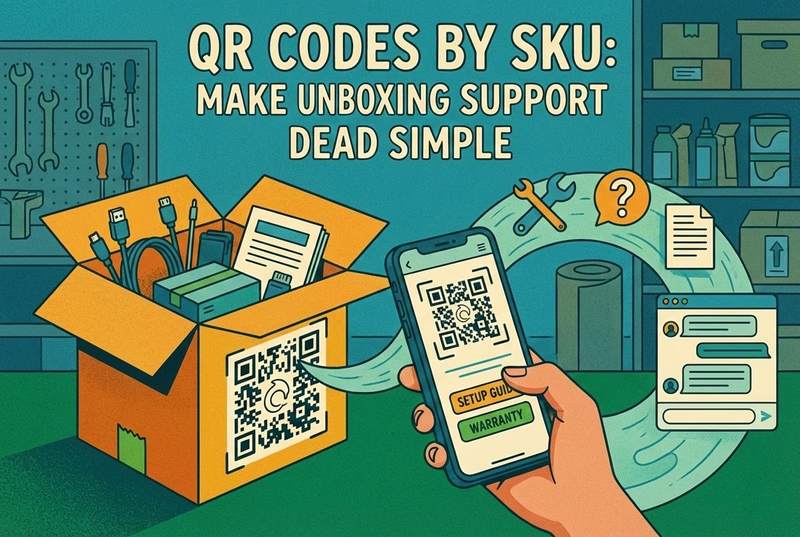
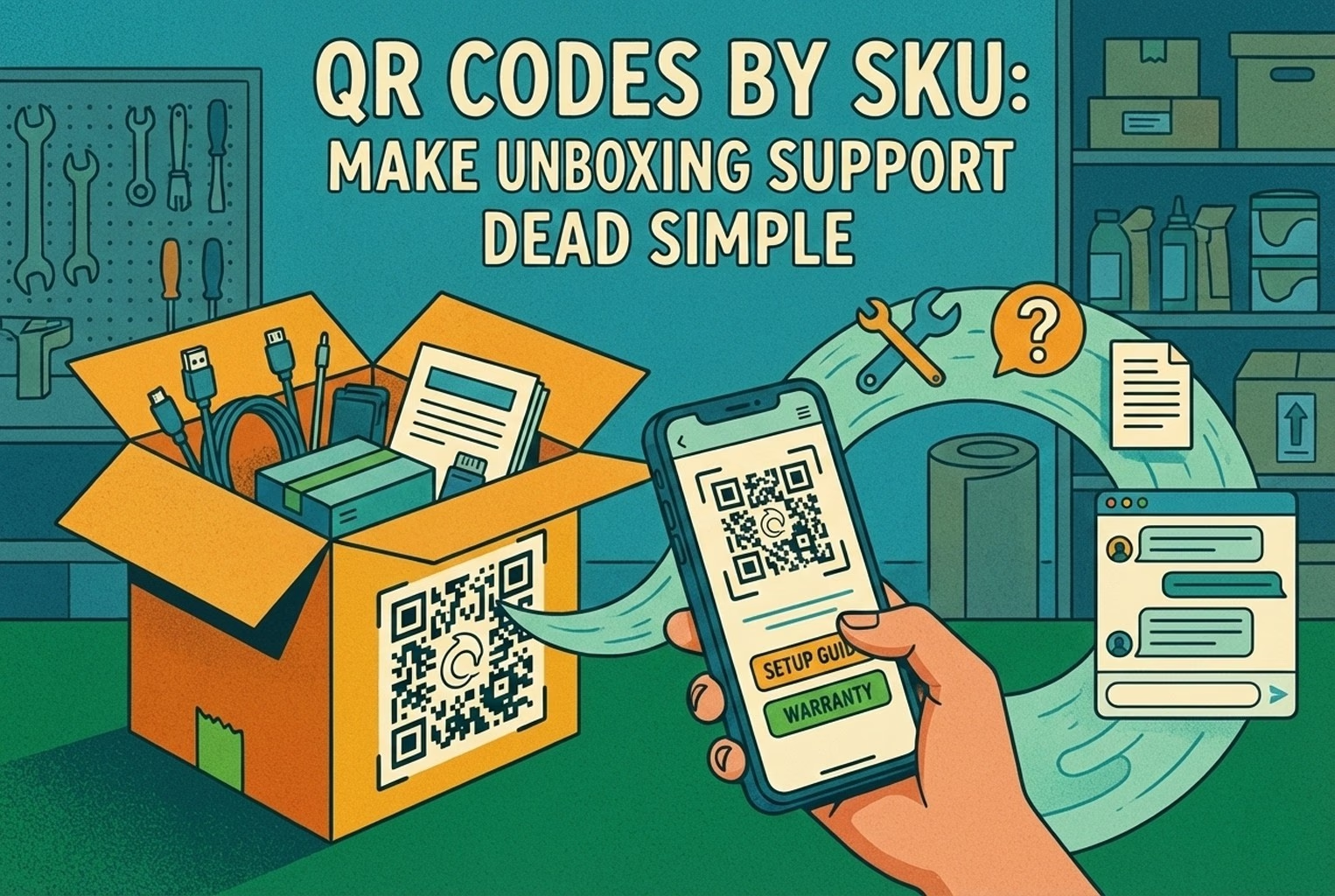
Unboxing support breaks when agents cannot tell which variant a customer holds. This guide shows how SKU-level QR codes on packaging open the right help, with placement tips, static vs dynamic choices, and rollout templates.
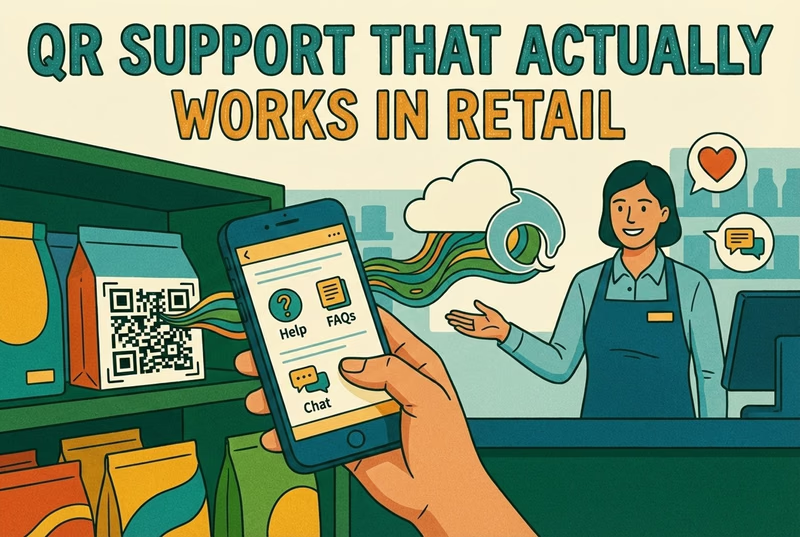
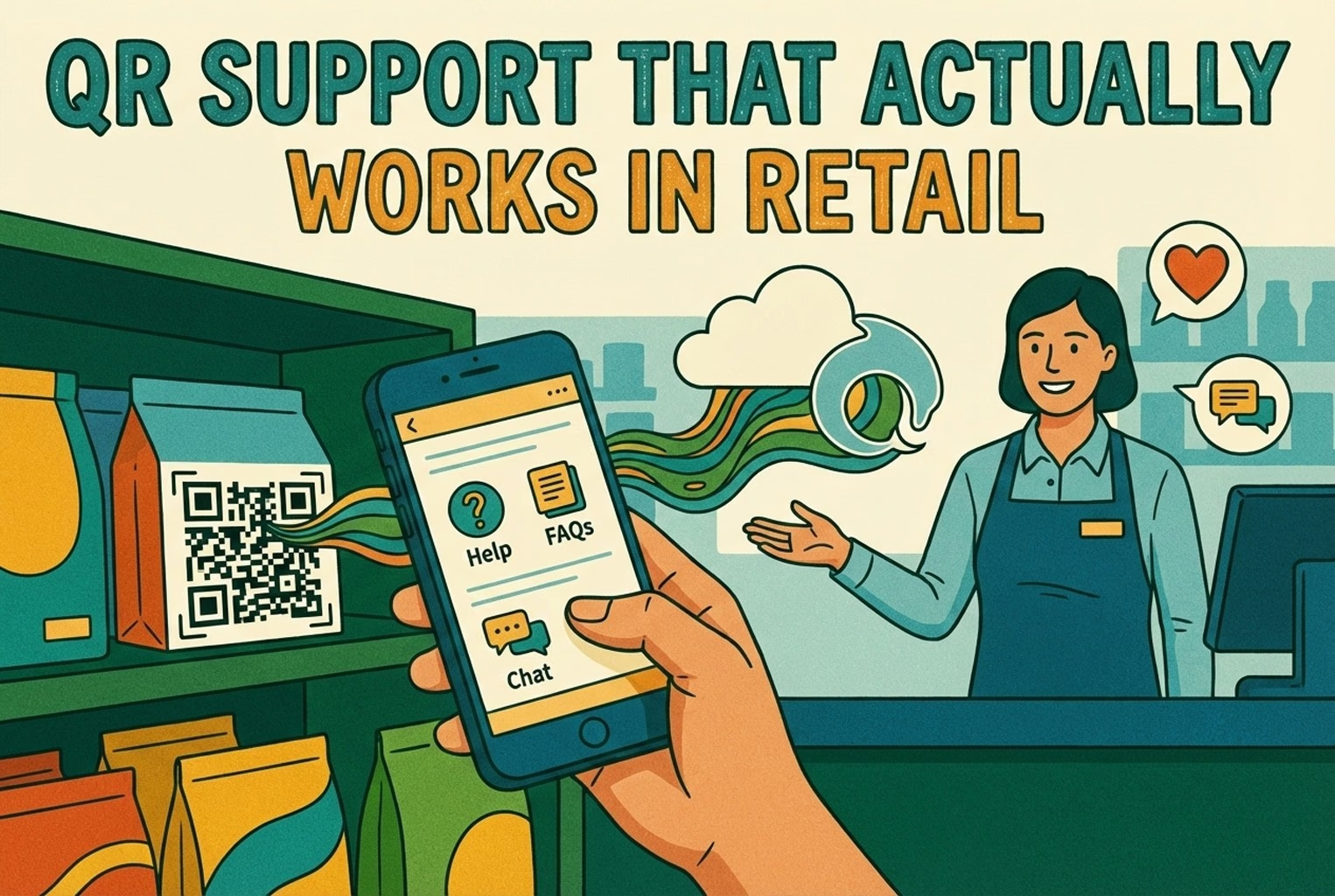
QR codes fail when they send shoppers to generic homepages or promo pages. This article covers retail placements that worked, what the scan should open, and how teams routed product help into one shared support workflow.
Which customer experience metrics are worth measuring, what each one tells you, and how to track them across digital, physical and omnichannel touchpoints.
You do not need a forty-tool CXM stack. This guide maps the practical customer experience tools ecommerce and retail teams use for chat, email, QR support, approved knowledge, and human handover.
A case-study style checklist for merchants who need live chat running fast without creating another inbox headache. See the settings, routing choices, and reply habits that improved response quality in real Shopify stores.
Selling across borders should not turn support into chaos. This playbook shows how retail teams handle multilingual chat and email with translation-safe macros, clear escalation rules, and QA habits that protect quality.
Stop losing the quiet ones.
Install it in a minute. It starts working on your next visitor.