
ImprovementDolphin AI

Set the tone of AskDolphin's Sales Assistant

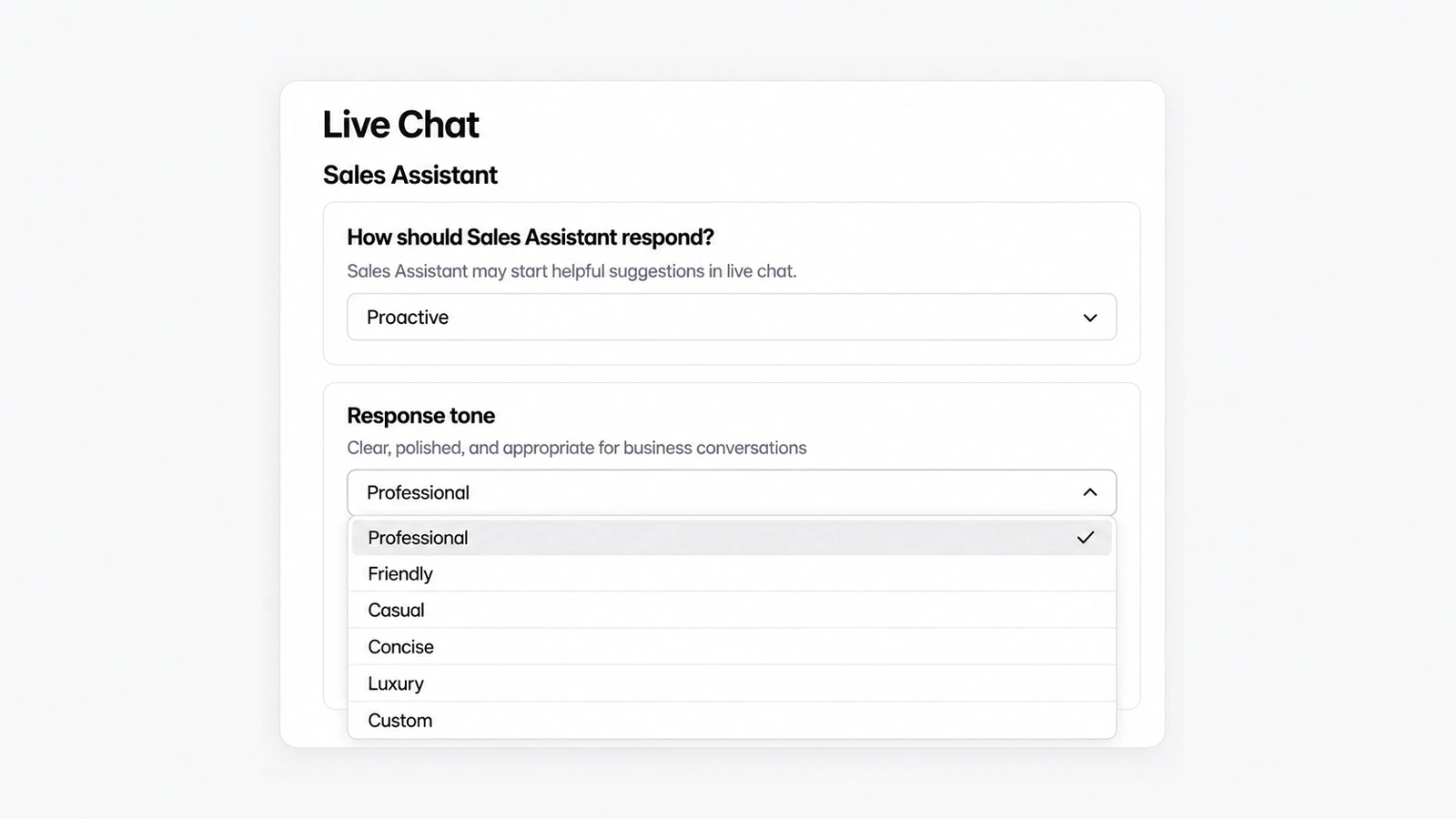
AskDolphin now lets you set the Sales Assistant's tone in live chat: Professional, Friendly, Casual, Concise, Luxury or your own Custom instructions.

AskDolphin now lets you set the Sales Assistant's tone in live chat: Professional, Friendly, Casual, Concise, Luxury or your own Custom instructions.See Dolphin AI
Last updated

What's new

AskDolphin now lets you set the Sales Assistant's tone in live chat: Professional, Friendly, Casual, Concise, Luxury or your own Custom instructions. You also choose whether it only helps when customers ask ("Assistive") or may start suggestions itself ("Proactive"). Both settings sit with the rest of Dolphin AI by AskDolphin, in the Live Chat channel.

Why it matters

A sports shop and a law firm should not sound the same. The response tone keeps the assistant's replies in your register, and the response mode decides how forward it is: a quiet helper that waits to be asked, or a shop assistant that offers help at the right moment.

How to use it

Open Dolphin AI, then Channels, then Live Chat, and find Sales Assistant:

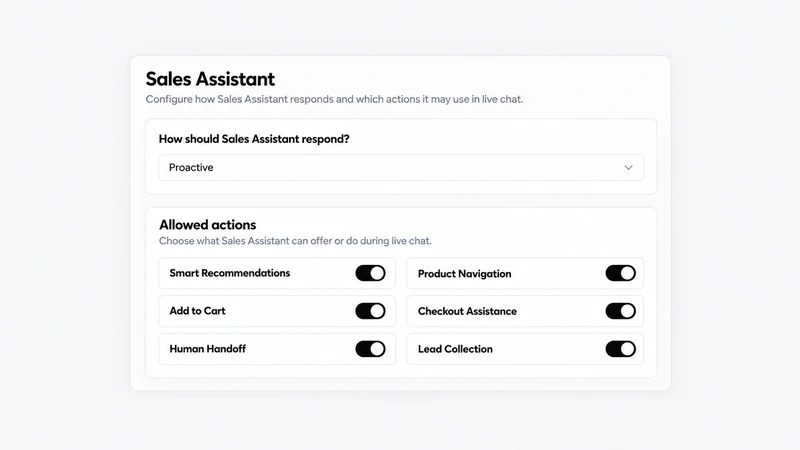
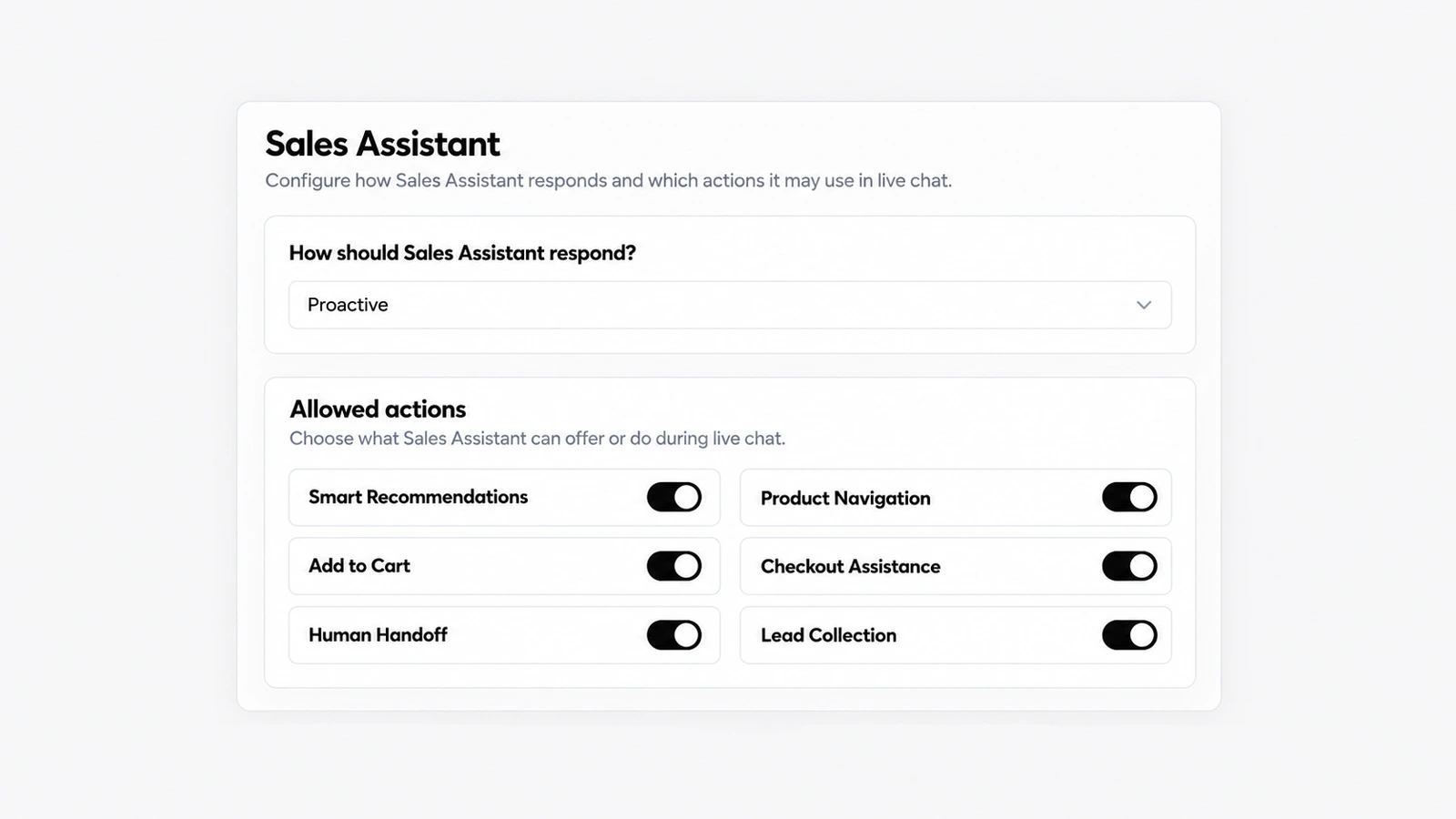
  • How should Sales Assistant respond? Choose Assistive ("Sales Assistant helps when customers ask, without initiating.") or Proactive ("Sales Assistant may start helpful suggestions in live chat.").
  • Response tone: pick Professional ("Clear, polished, and appropriate for business conversations"), Friendly, Casual, Concise or Luxury, or choose Custom and write your own voice instructions in the fields that open below.
  • With Proactive, the Proactive messages switch lets it "start conversations with helpful suggestions at the right moment."
  • Below, Allowed actions lists what the Sales Assistant may do, each with its own switch.

Good to know

  • Proactive mode is part of the Advanced Visitor & Sales add-on for Pro, and you can try it during the 14-day trial.
  • Email agents have their own rules: each has written Reply instructions and a Reply purpose.

Frequently asked questions

Can I change how the AskDolphin AI sounds?

Yes. Pick a response tone for the Sales Assistant (Professional, Friendly, Casual, Concise or Luxury) or write your own Custom instructions in the Dolphin AI settings.

Can AskDolphin's Sales Assistant wait until a customer asks?

Yes. Choose "Assistive" and it helps only when customers ask, without starting the conversation.

Released
Category
Dolphin AI
Availability
Proactive mode: Advanced Visitor & Sales add-on (in the trial)

Related updates

AI Sales Assistant for your store

AskDolphin's Sales Assistant recommends products, guides visitors to the right page, collects leads and hands over to your team in chat.
new-plans-free-proNew plans: Free and Pro
ai-billing-by-charactersFairer AI billing by characters, with a monthly limit
sales-assistant-budget-controlsBudget controls for AI sessions and recordings
ai-sales-assistantAI Sales Assistant for your store
session-replayLive visitors and Session Replay
dolphin-ai-product-notesAskDolphin's AI takes a note when it doesn't know
action-reviewAction Review: approve what customers ask for
cancellation-refund-requestsCancellation and refund requests in chat
order-status-in-chatOrder and delivery status inside the chat
canned-responsesCanned responses for your team
shopify-order-actionsShopify order actions in your inbox and chat
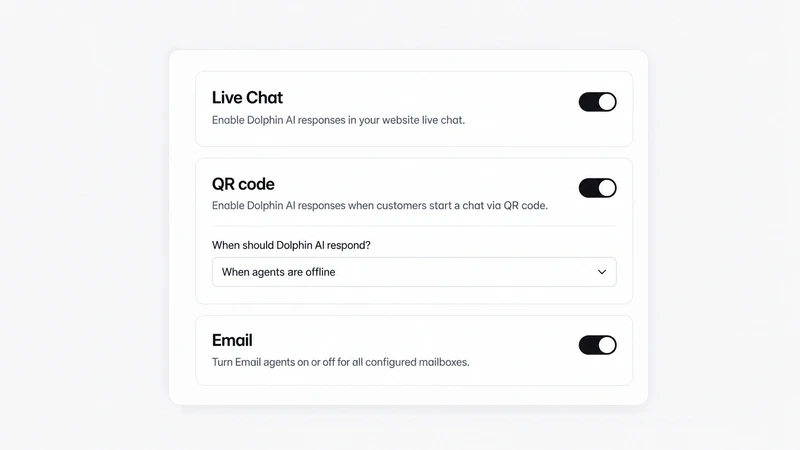
dolphin-ai-channel-settingsDolphin AI by AskDolphin: settings for chat, QR and email
dolphin-ai-toneSet the tone of AskDolphin's Sales Assistant
ai-email-repliesAI email replies and drafts, per mailbox
outlook-microsoft-365-integrationOutlook and Microsoft 365 integration
gmail-integrationGmail integration for your support inbox
chat-widget-ten-languagesThe AskDolphin chat widget in ten languages
widget-channels-tabA Channels tab for your social links
widget-products-services-tabProducts or Services tab in the chat widget
widget-conversation-startersA widget home screen that starts conversations
chat-widget-designDesign your AskDolphin chat widget
new-chat-widgetThe new AskDolphin chat widget
mailbox-sender-settingsSender addresses and domains for each mailbox
custom-business-emailConnect your business email by forwarding
ai-writing-assistant-inboxAI writing help in your support inbox
dolphin-replyDolphin Reply: AI draft replies in one click
help-center-ai-sourceHelp Center as an AI source and a Help tab
dolphin-ai-data-sourcesDolphin AI by AskDolphin now uses your Data Sources
framer-pluginAskDolphin for Framer: live chat plugin
new-qr-code-typesNew QR code types, including vCard, SMS and phone
qr-code-stylesAdvanced QR code styles and settings
qr-code-libraryQR code library with scan counts
chat-transcript-settingsChat transcript settings
support-notificationsNotifications for your support team
talk-and-listen-dolphin-aiTalk to Dolphin AI by AskDolphin and hear its replies
dashboard-dark-modeLight, dark or system theme, and your workspace color
new-support-dashboardA new support dashboard

Stop losing the quiet ones.

Install it in a minute. It starts working on your next visitor.

14 days, every feature.