AskDolphin now lets you set the address and name shown on replies, verify your own domain for sending, and choose who on the team may use each mailbox.
AskDolphin now lets you set the address and name shown on replies, verify your own domain for sending, and choose who on the team may use each mailbox.See email in AskDolphin
AskDolphin now lets you set the address and name shown on replies, verify your own domain for sending, and choose who on the team may use each mailbox. Customers see the address they wrote to. These settings sit with the rest of email in AskDolphin.
Why it matters
A reply from an unfamiliar address looks like spam, and may be treated like it. Sending from your own verified domain, under your business name, keeps replies recognizable and helps them reach the inbox, and access settings keep each mailbox with the people who should answer it.
How to use it
Open Settings, then Channels, then Email. There are three tabs:
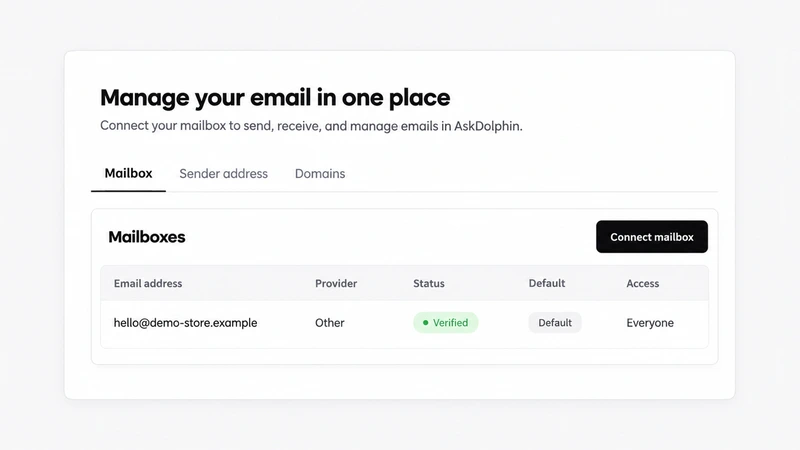
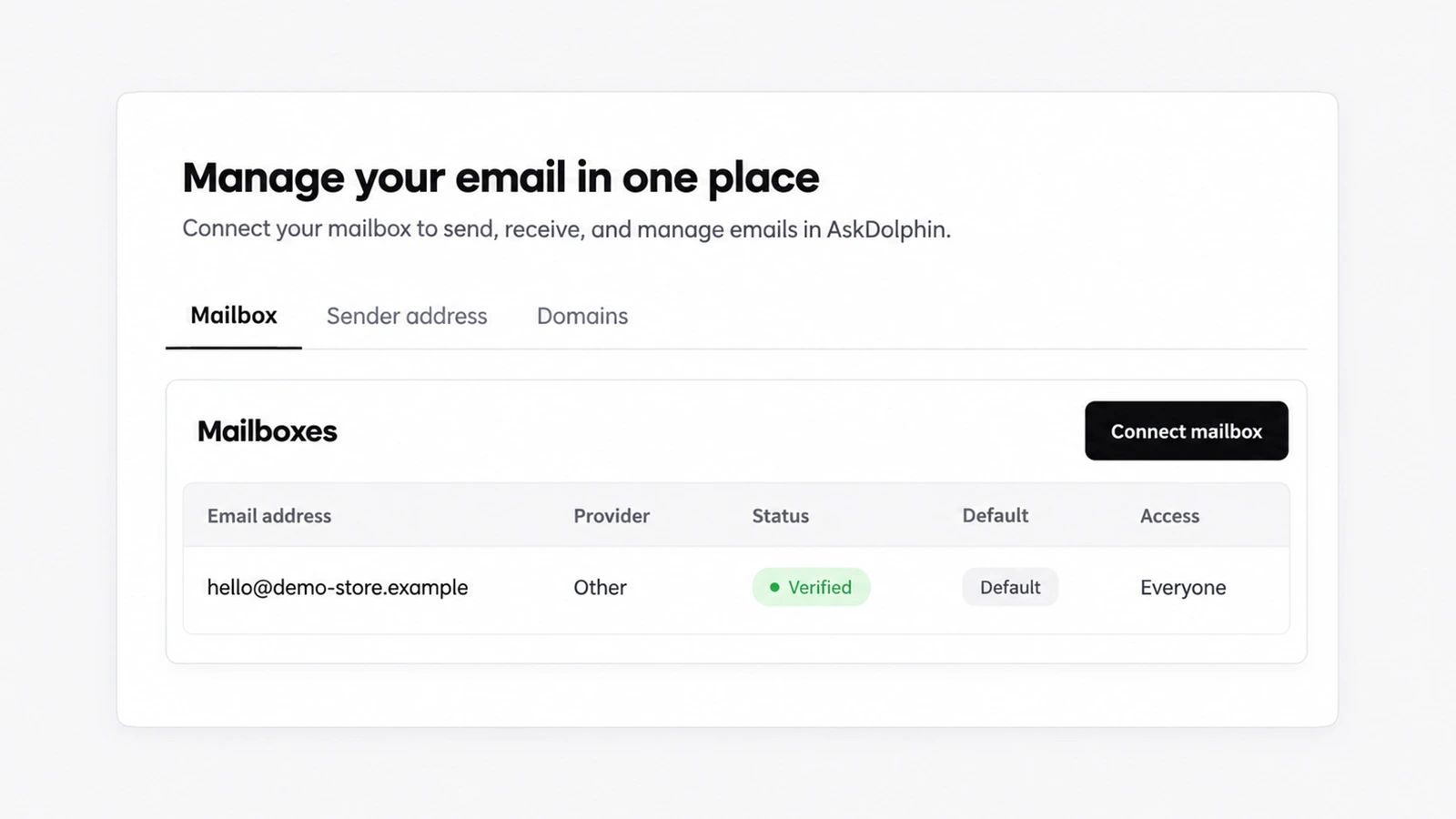
Mailbox: each connected mailbox with its status, which one is the Default, and its Access: who on the team may use it.
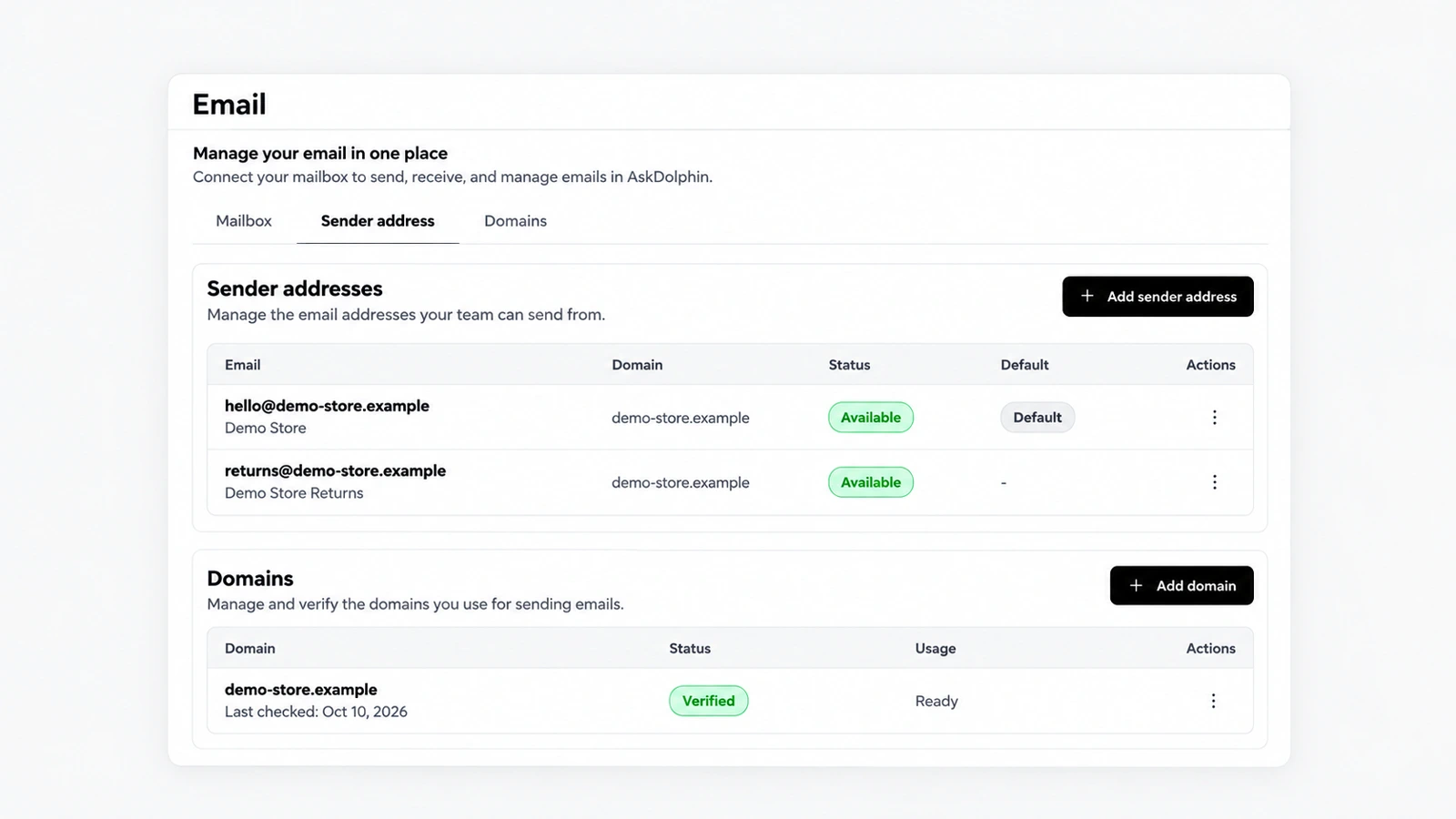
Sender address: choose Add sender address to create an address under a verified domain, with the name customers see: "Create sender addresses under your verified domains to choose what appears in the From field for outgoing emails."
Domains: choose Add domain to connect your own domain "to send emails from your own address and improve deliverability." Each domain shows its status, such as Verified, and when it was last checked.
Good to know
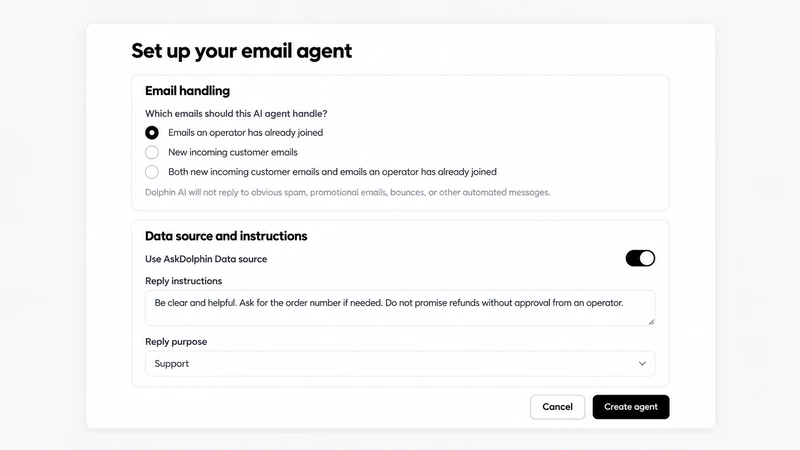
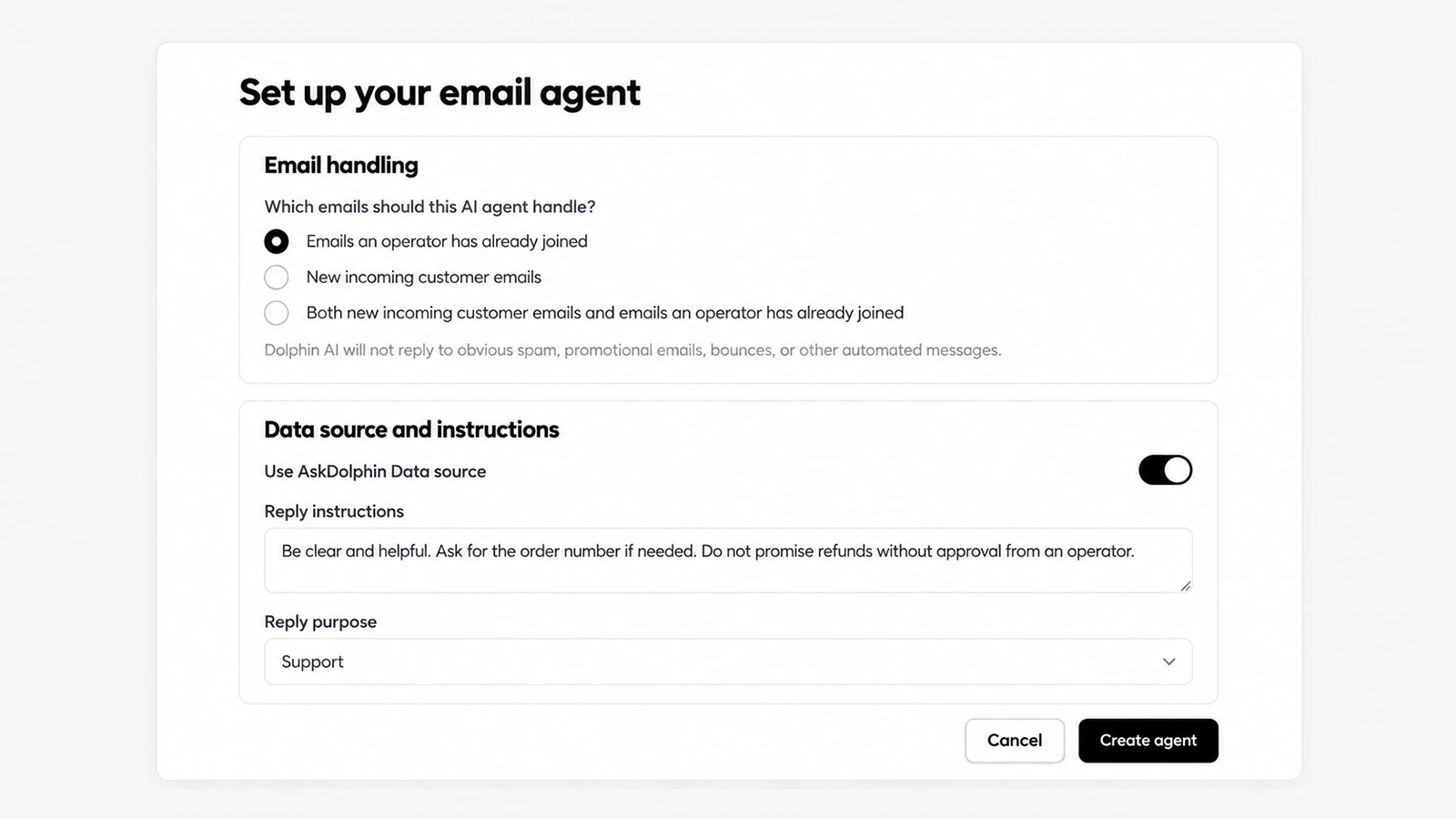
Email agents use a sender address too: each AI agent has a Send replies from setting.
Your domain and sender address are included on Free and Pro.
Frequently asked questions
Can AskDolphin send replies from my own domain?
Yes. Verify your domain and set a sender address so replies come from your business address.
Can I limit who uses a mailbox in AskDolphin?
Yes. Each mailbox has an Access setting for who on the team may use it.