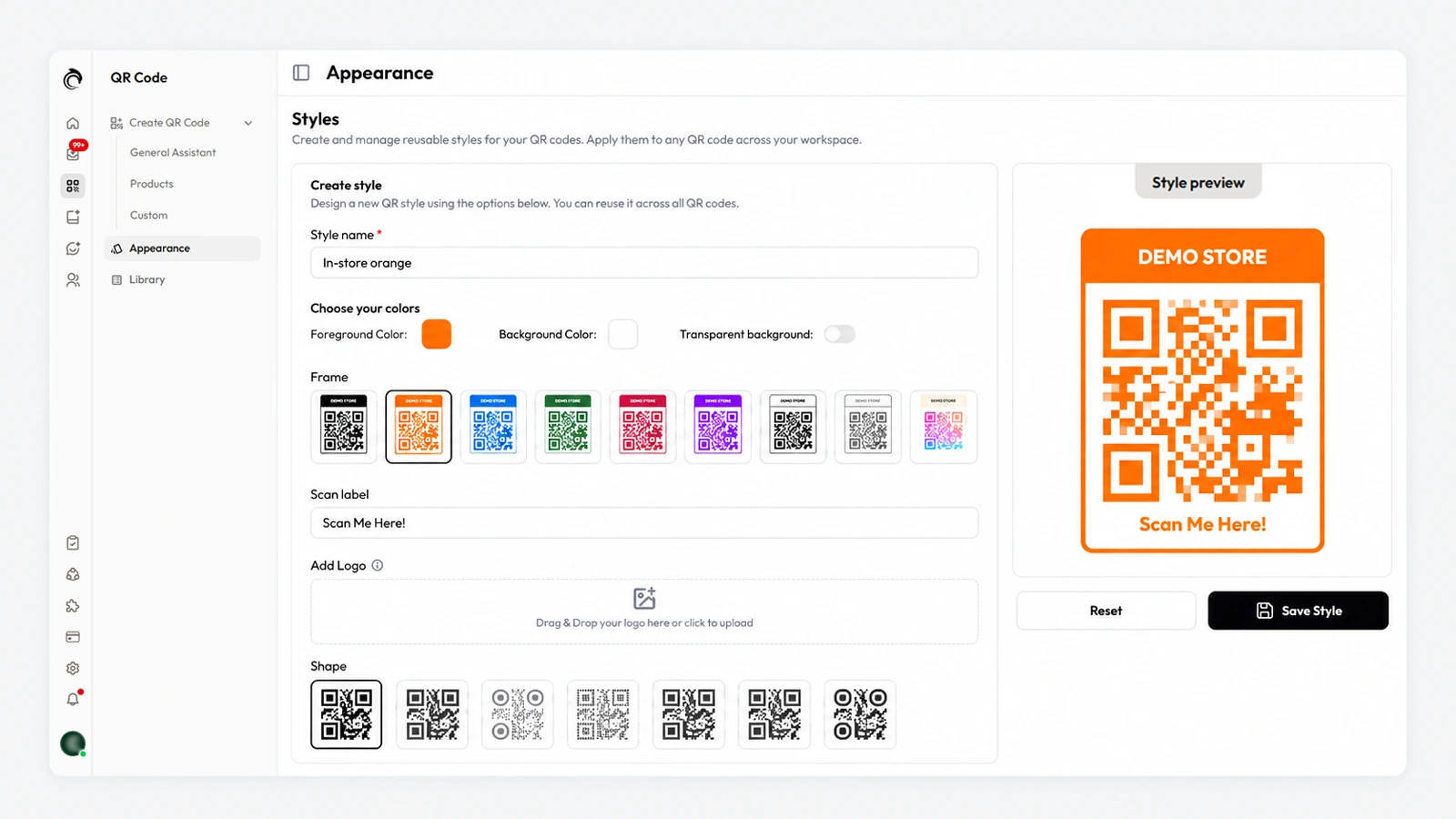
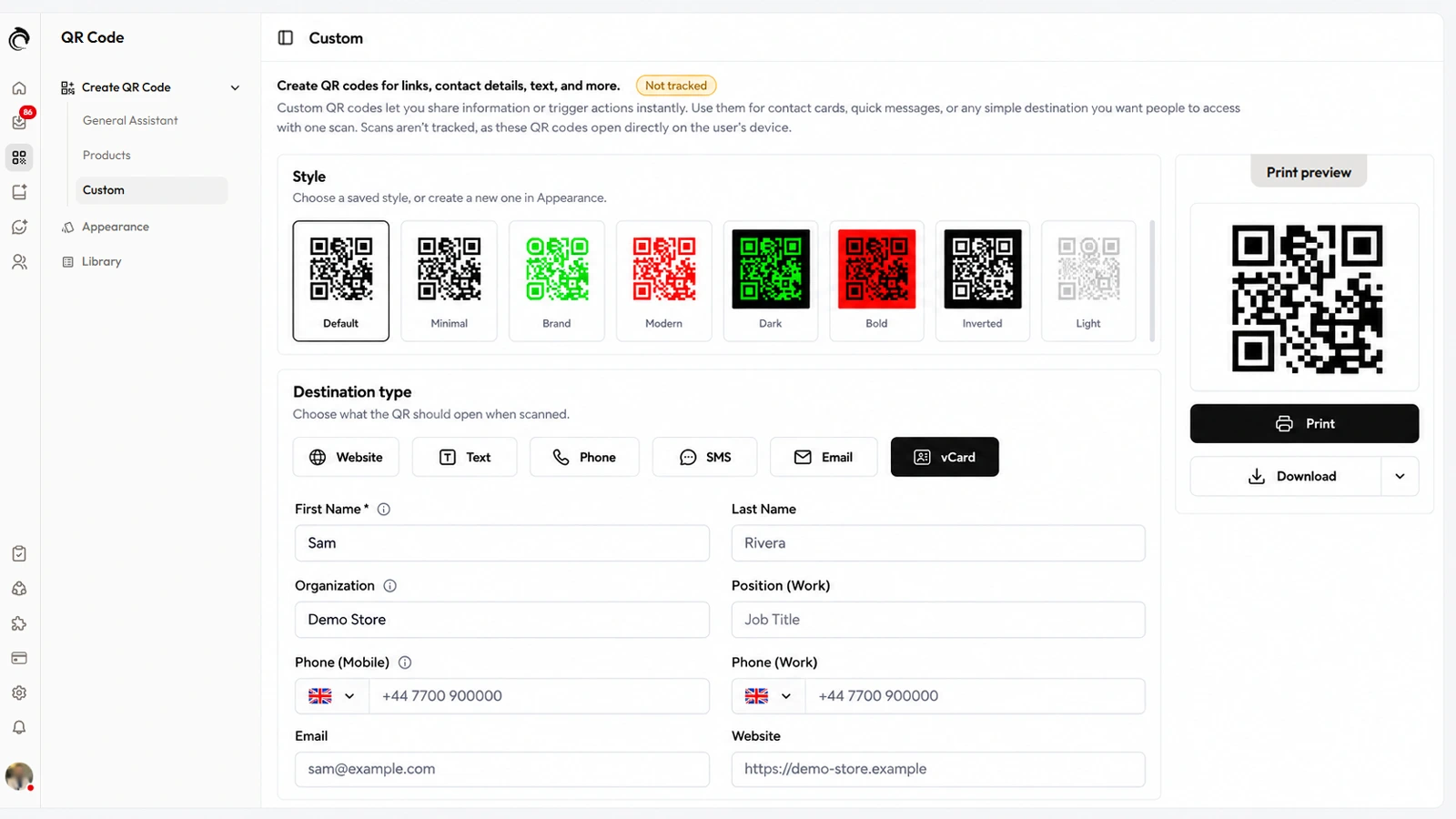
AskDolphin now saves reusable QR code styles with your colors, one of nine frames, a scan label, your logo and one of seven shapes.
AskDolphin now saves reusable QR code styles with your colors, one of nine frames, a scan label, your logo and one of seven shapes.See QR codes in AskDolphin
AskDolphin now saves reusable QR code styles with your colors, one of nine frames, a scan label, your logo and one of seven shapes. Codes print in batches or download as PNG, JPEG or SVG. Every code you make for QR code customer support can use them.
Why it matters
A QR code is part of your packaging, shelf or table card, so it should look like your brand, not a default black square. Saving the style once means every new code matches, and a scan label tells people what to do.
How to use it
Open QR Code, then Appearance, and choose Create style:
Give the style a name, such as "In-store black", and choose the Foreground Color and Background Color, or a transparent background.
Pick one of nine Frame designs and write the Scan label, for example "Scan Me Here!".
Use Add Logo to place your logo (up to 100 KB), and choose one of seven Shape options for the dots and corners.
Check the Style preview, then Save Style.
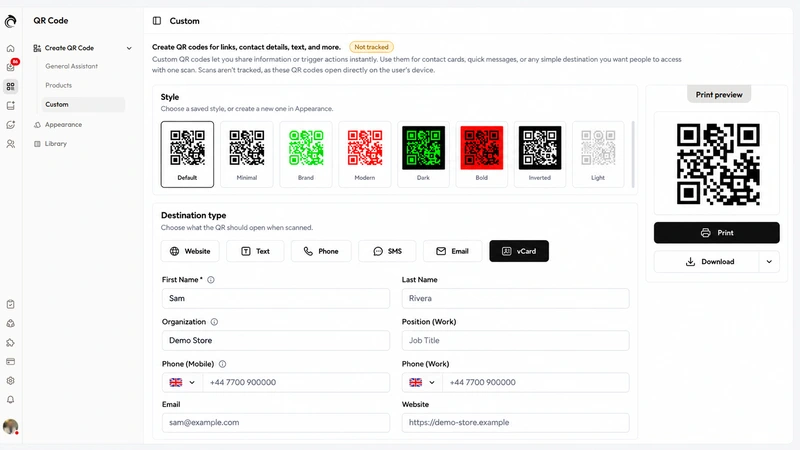
When you create a code, choose a saved style under Style. From the Print preview, select Print, or Download as PNG, JPEG or SVG.
Good to know
SVG keeps a code sharp at any size, from a price tag to a poster.
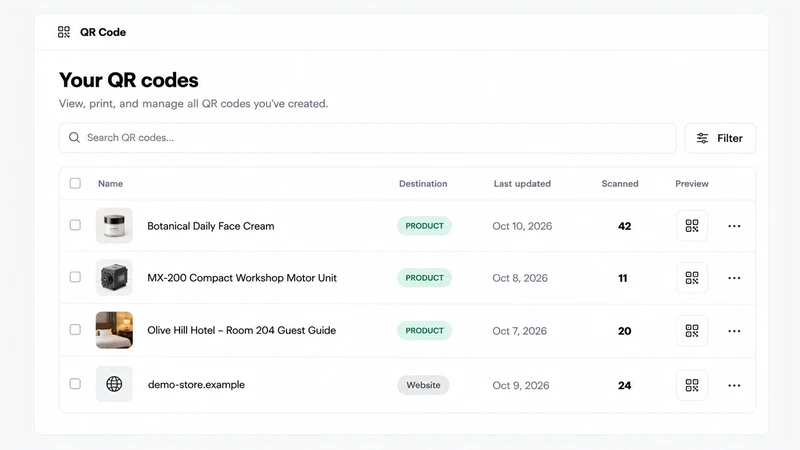
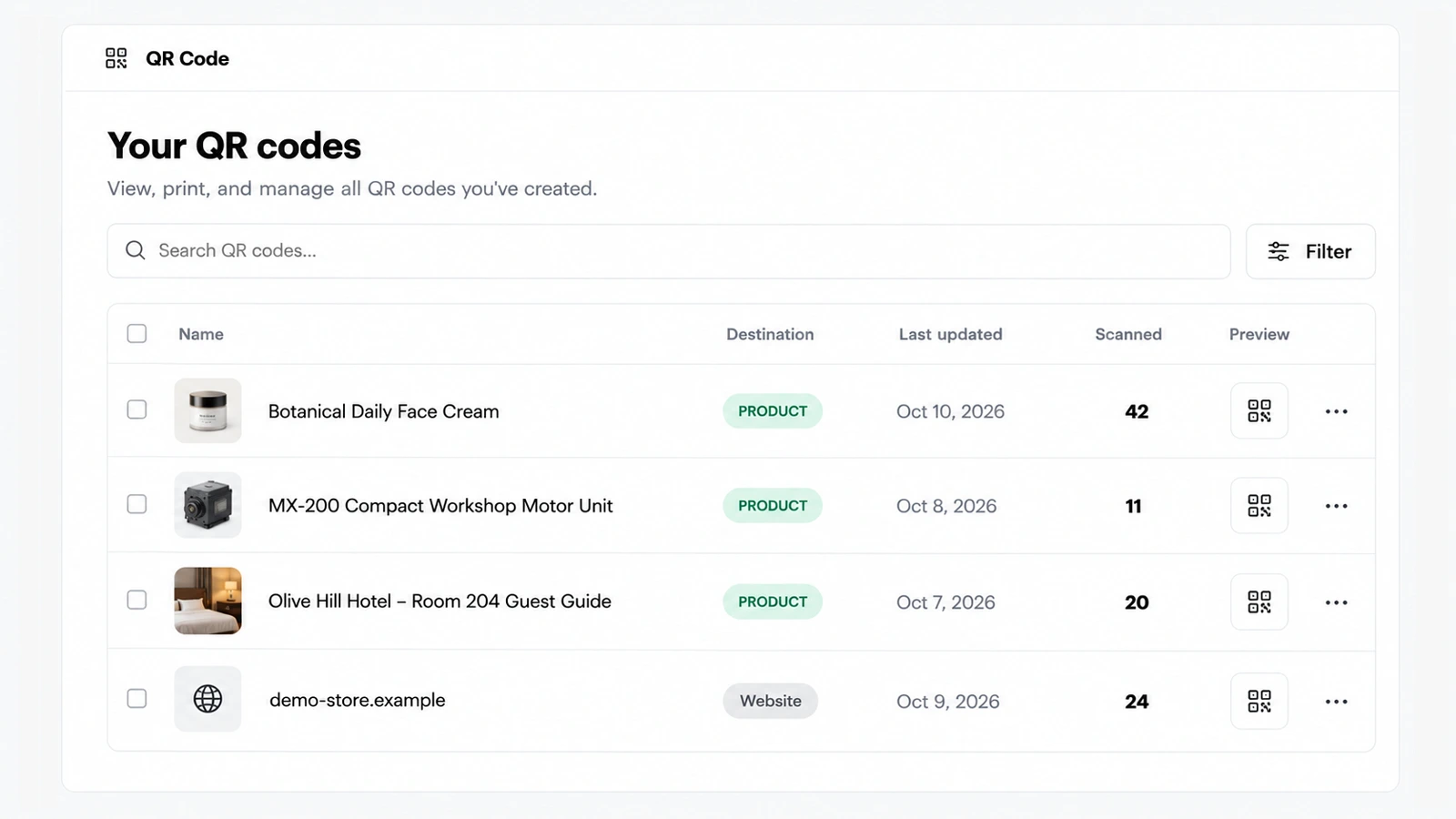
For products, tick several in the list to print their codes together.
A Powered by AskDolphin switch hides that label on previews and prints.
Smart QR codes are included on Free and Pro.
Frequently asked questions
Can I add my logo to a QR code in AskDolphin?
Yes. Save a style with your logo, colors, frame and shape and use it on every code.
Which file formats can I download AskDolphin QR codes in?