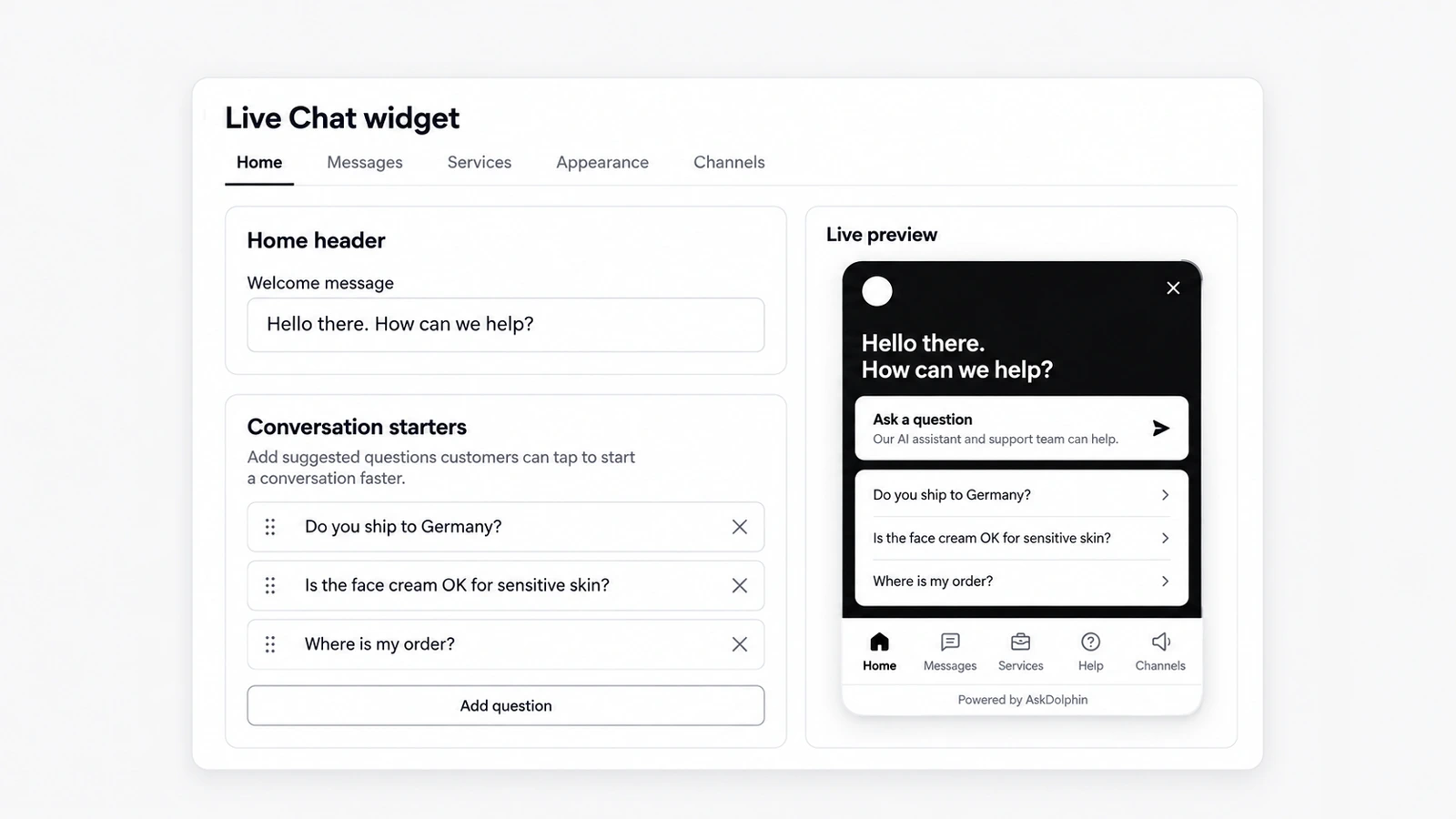
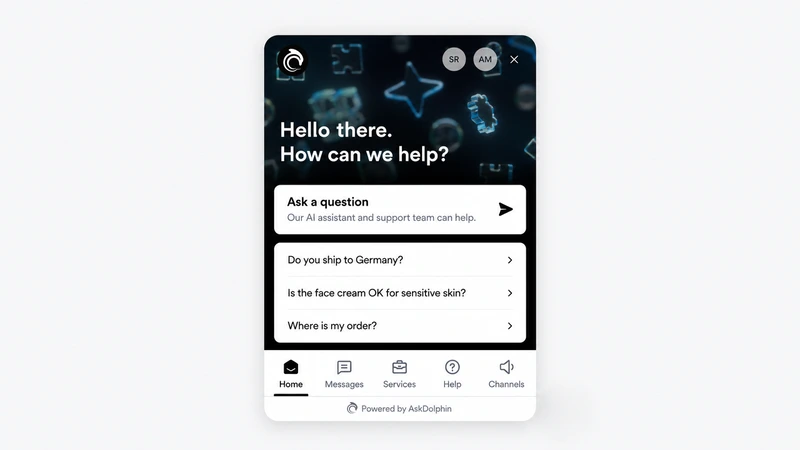
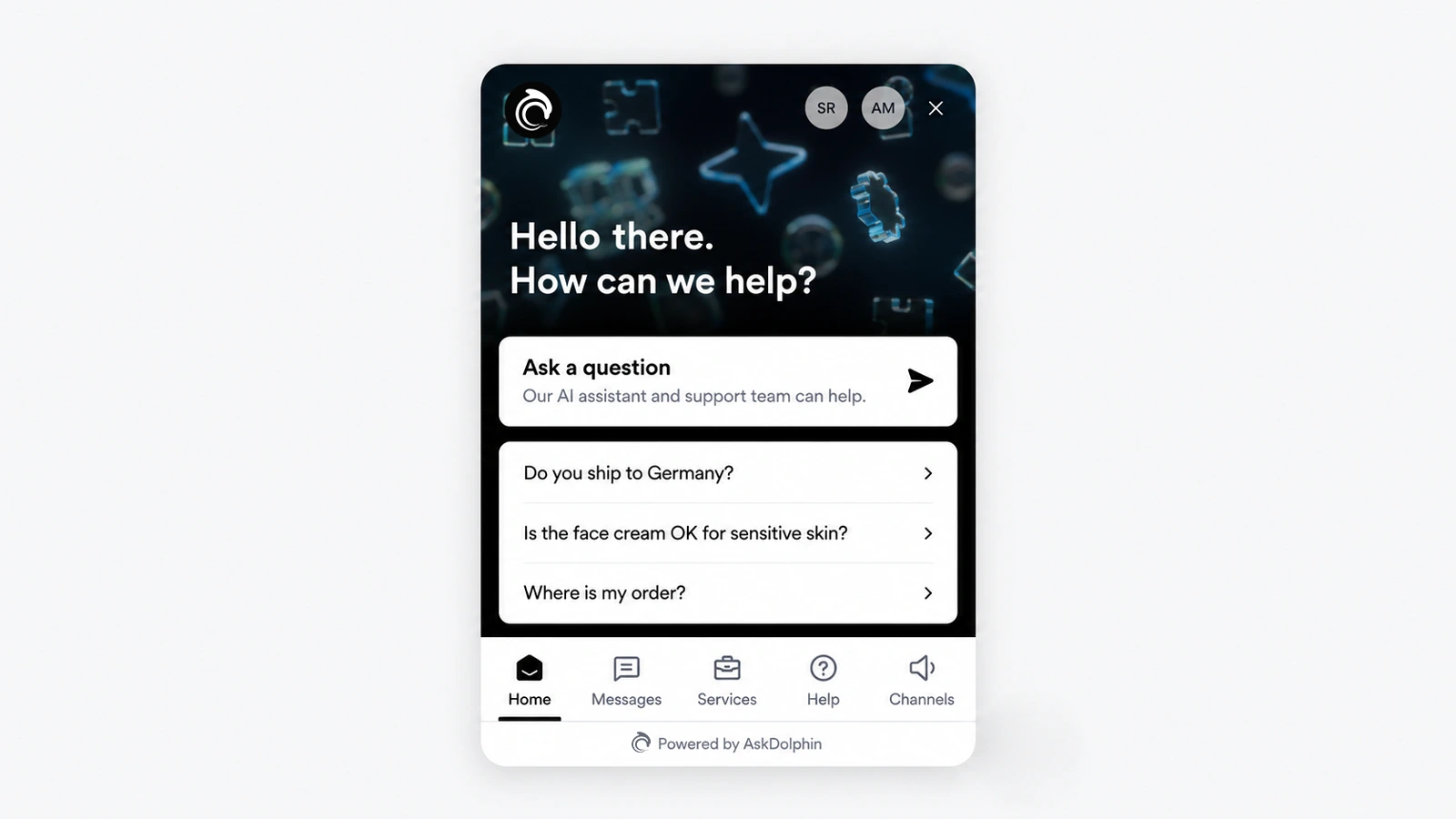
AskDolphin's chat widget now opens on a home screen with your header image, welcome message, logo and team photos. A start chat card and suggested questions let customers begin with one tap. It is the first thing customers see when they open AskDolphin's chat widget.
Why it matters
The hardest part of asking for help is the first message. A friendly greeting, the faces of the people who will answer and a few questions others often ask make it easy to start, and the questions you choose lead customers to the topics you can answer well.
How to use it
Open Settings, then Channels, then Live Chat widget, then Appearance, then Home:
Home header: upload a background image (up to 2048 KB) and write the Welcome message.
Header display: show your company logo, show team avatars, and blend the image into your primary color with Background gradient.
Start chat card: write the title (up to 45 characters) and description of the card customers tap to begin.
Show order tracking: let visitors of a connected Shopify store track orders from the home screen.
Conversation starters: choose Add question for each suggested question.
The live preview shows the home screen as you build it.
Good to know
Customers tap a conversation starter to begin the chat with that question.
On AskDolphin's own website, the home screen shows six starters, such as "What can AskDolphin do?" and "Can my team take over from the AI?".
The customizable chat widget is included on Free and Pro.
Frequently asked questions
Can I add suggested questions to the AskDolphin chat?
Yes. Add conversation starters and customers tap one to start the chat.
Can the AskDolphin widget show my team's photos?
Yes. Switch on "Show team avatars" and your team members appear on the widget home screen.