
Help centre articles

Sell your WooCommerce products with AskDolphin

If your WordPress site runs WooCommerce, AskDolphin can sell your products in chat. Dolphin AI answers about your products, adds them to the cart and sends visitors to your checkout.

Updated

sell-woocommerce-products-with-askdolphininstall-askdolphinPublicIndexAskDolphin

If your WordPress site runs WooCommerce, AskDolphin can sell your products in chat. Dolphin AI answers questions about your products, prices and stock, adds products to your visitor’s cart and sends them straight to your checkout.

In this article, you’ll learn:

  • How to connect your WooCommerce store to AskDolphin

  • Which products Dolphin AI uses and how they stay up to date

  • What your assistant can do in chat

  • How to disconnect WooCommerce

Let’s get started and make your setup process as simple as possible!

Note: WooCommerce works through the AskDolphin plugin for WordPress, so there’s no separate app to install. Using Shopify instead? See Install AskDolphin on Shopify.


Before you start

Make sure you have:

  • The AskDolphin plugin installed and connected on your WordPress site. If you haven’t done that yet, follow Install AskDolphin on WordPress first.

  • WooCommerce active on the same site.

  • An AskDolphin account without Shopify connected.

You can connect one store per AskDolphin account.


Connect your WooCommerce store

Step 1: Click Connect WooCommerce

In WordPress, open AskDolphin in the sidebar. In Your assistant, find the WooCommerce products row and click Connect WooCommerce.
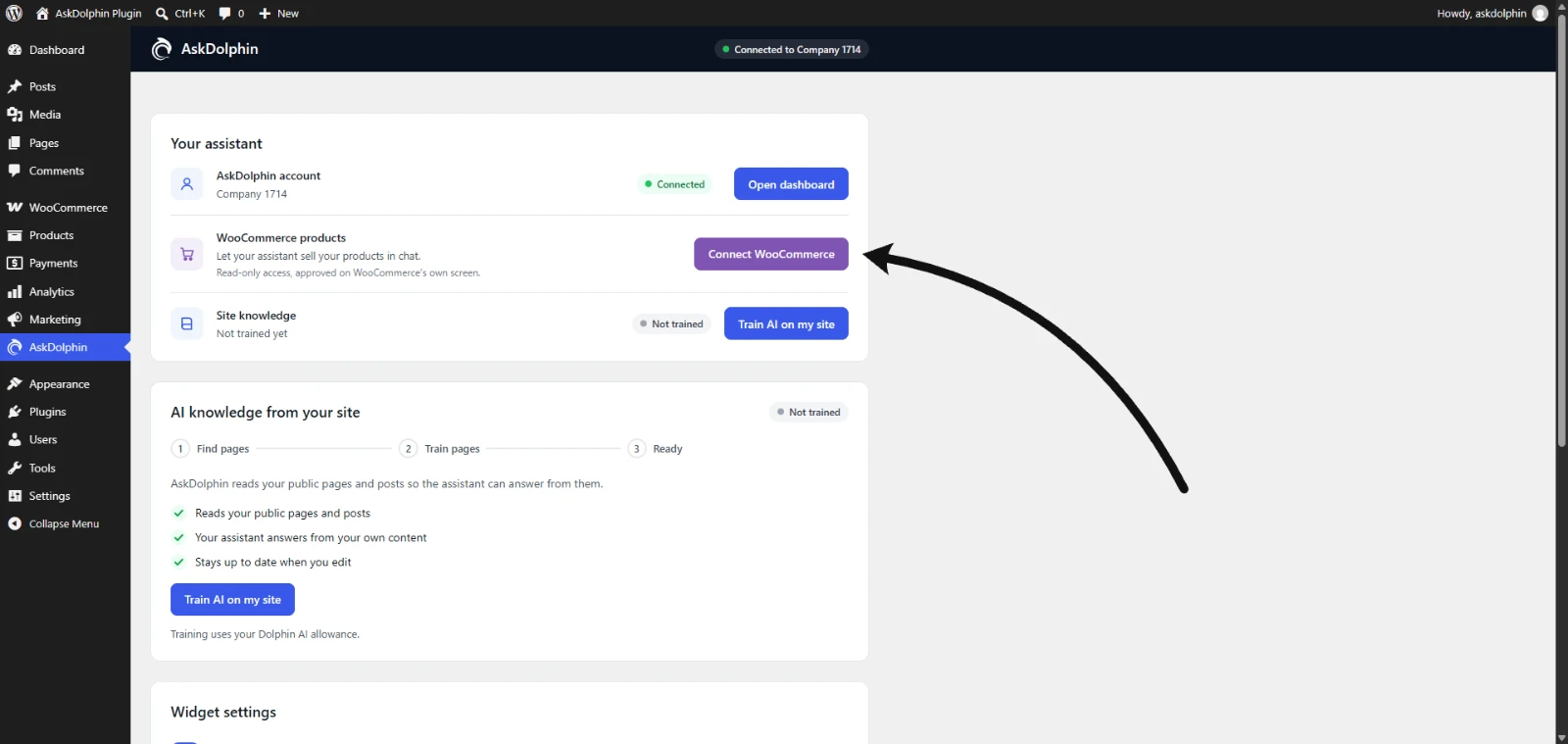
The Your assistant card on the AskDolphin page in WordPress, with an arrow pointing to the Connect WooCommerce button in the WooCommerce products row.

In your AskDolphin panel, Integrations > WooCommerce shows the same step, with an Open WordPress button.
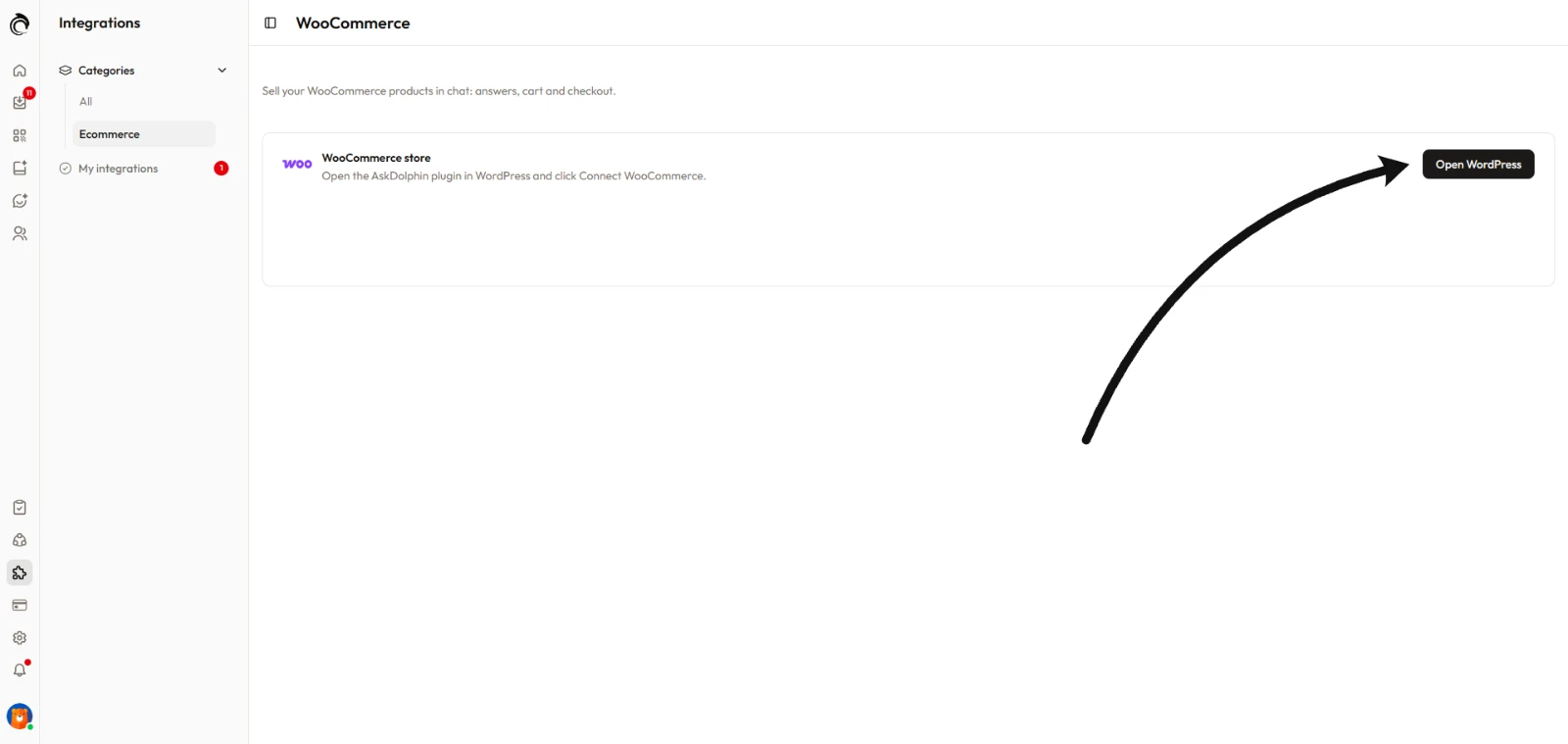
The WooCommerce page in the AskDolphin panel before connecting, with an arrow pointing to the Open WordPress button.


Step 2: Approve read-only access

WooCommerce opens its own screen and asks you to give AskDolphin Read access. Click Approve.
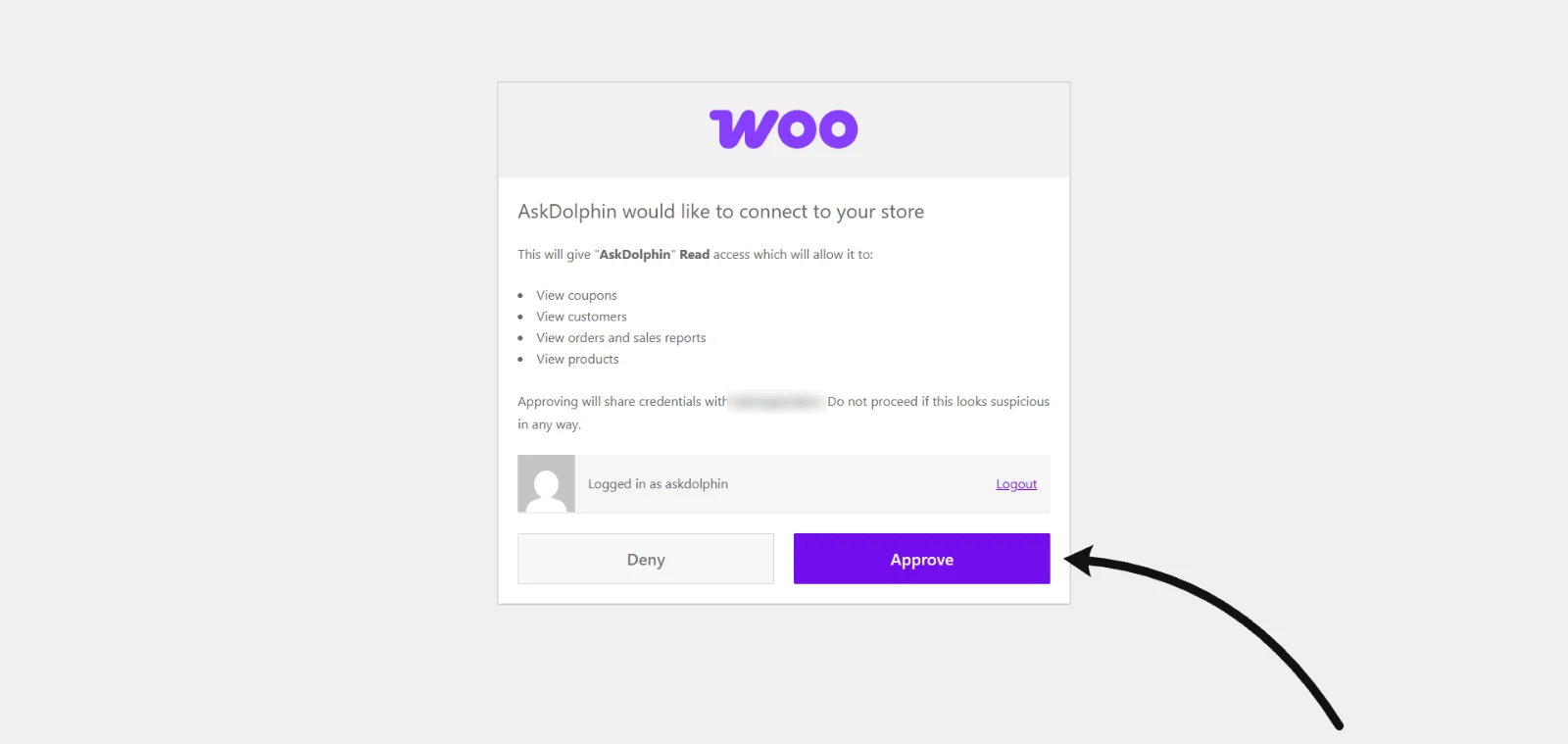
WooCommerce screen asking to connect AskDolphin to the store with Read access, with an arrow pointing to the Approve button.

Read access means AskDolphin can see your store but can never change it. The screen lists everything Read access covers, but AskDolphin only uses your products and categories. If you click Deny, nothing is connected.


Step 3: Let your products import

You’re sent back to the AskDolphin page in WordPress, with the notice WooCommerce connected. Importing your products…

The row shows Importing, then Synced with the number of products that are live for your assistant. You don’t need to reload the page.
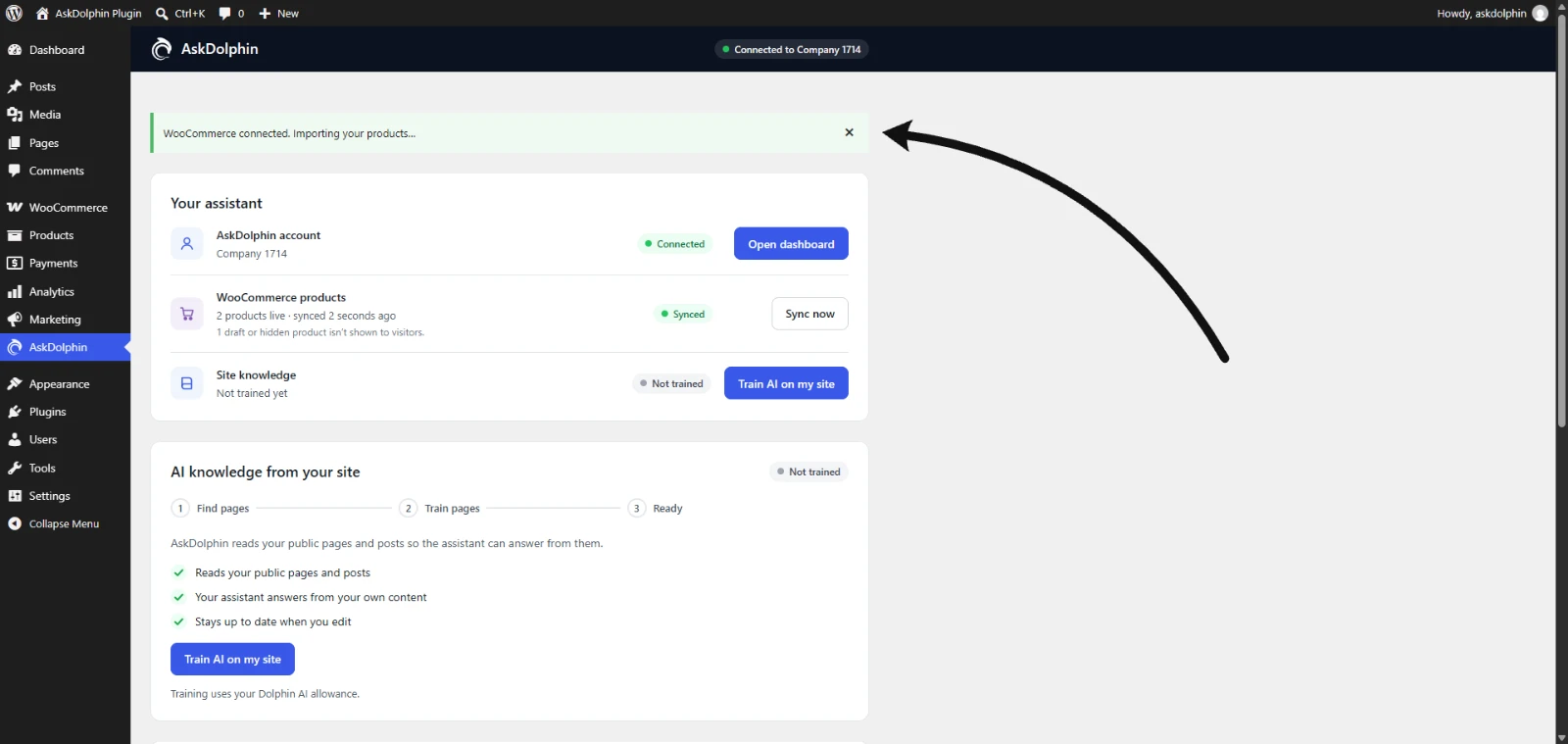
The AskDolphin page in WordPress after approving, with an arrow pointing to the notice that WooCommerce is connected and products are importing.


Which products your assistant uses

Only published, visible products are shown to visitors. Drafts, private and hidden products stay out, and the WooCommerce products row tells you how many.

Dolphin AI uses each product’s name, description, price, sale price, stock, images, categories and variations, such as size and color.

Tip: Put your products in categories. Products left in Uncategorized are harder for Dolphin AI to find when a visitor asks for a type of product.


What your assistant can do in chat

  • Answer questions about your products: prices, sizes, colors, stock and details, with product cards.

  • Add products to the cart: when a visitor asks, Dolphin AI adds the product to their WooCommerce cart, and can change the quantity or remove it. It never adds an option that is sold out.

  • Send visitors to checkout: when the visitor is ready, a checkout card opens your store’s own checkout with their products. Payment happens in WooCommerce as usual.


Keep your products up to date

There’s nothing to do. When you add, edit or delete a product in WooCommerce, AskDolphin updates it for you.

If something ever looks out of date, click Sync now in the WooCommerce products row.


See your store in AskDolphin

Log in to your AskDolphin panel and go to:

Integrations > WooCommerce

You’ll see your store, its status, how many products are live, when it last synced, and whether cart and checkout are on.
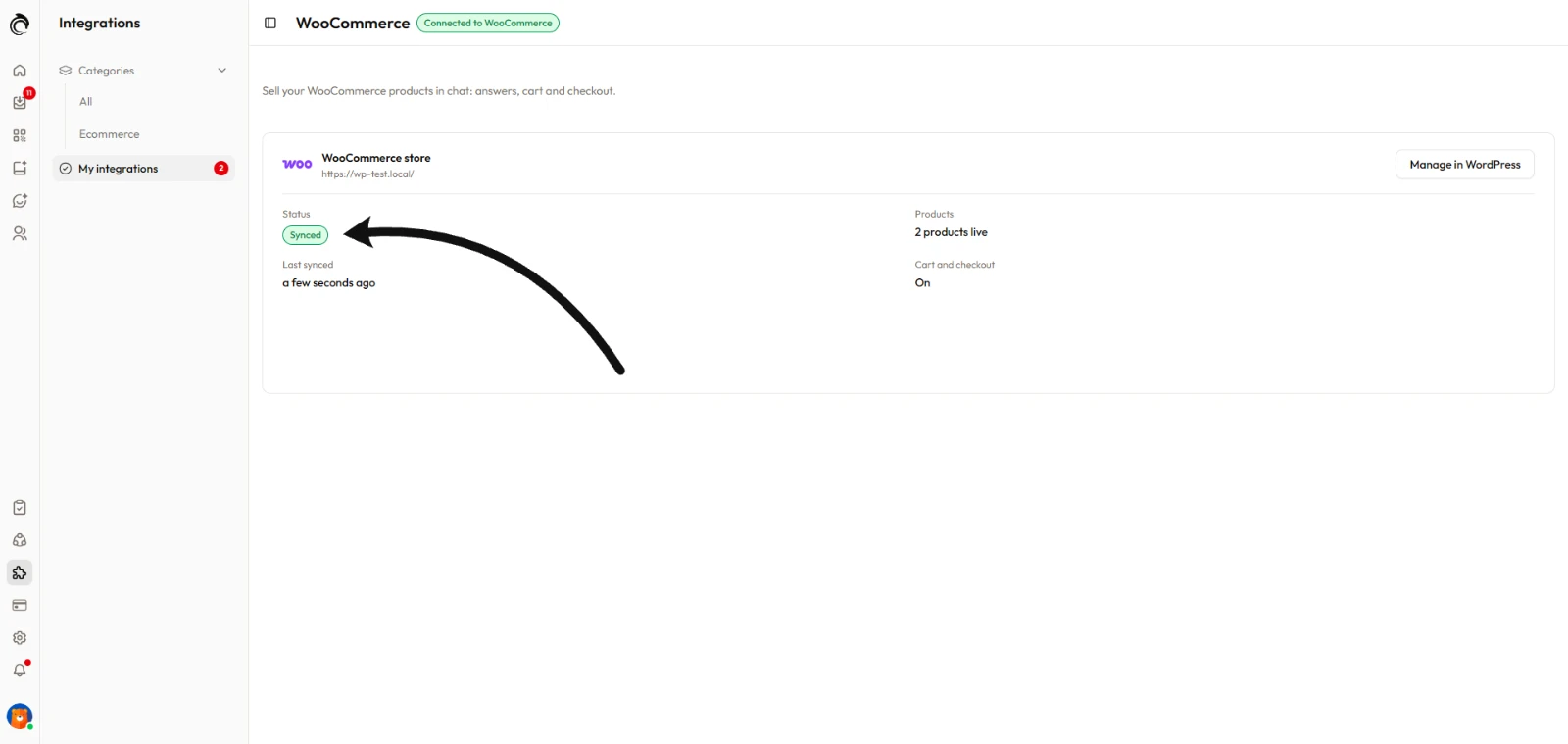
The WooCommerce page in the AskDolphin panel after connecting, showing the store, products and cart and checkout, with an arrow pointing to the Synced status.

Your products also appear in AI Data Sources > Products with the WooCommerce label. They’re read-only there. Edit them in WordPress, and AskDolphin picks up the change.


Disconnect WooCommerce

Step 1: Open Manage connection

On the AskDolphin page in WordPress, open Manage connection at the bottom of the page.

Step 2: Click Disconnect WooCommerce

Click Disconnect WooCommerce and confirm.
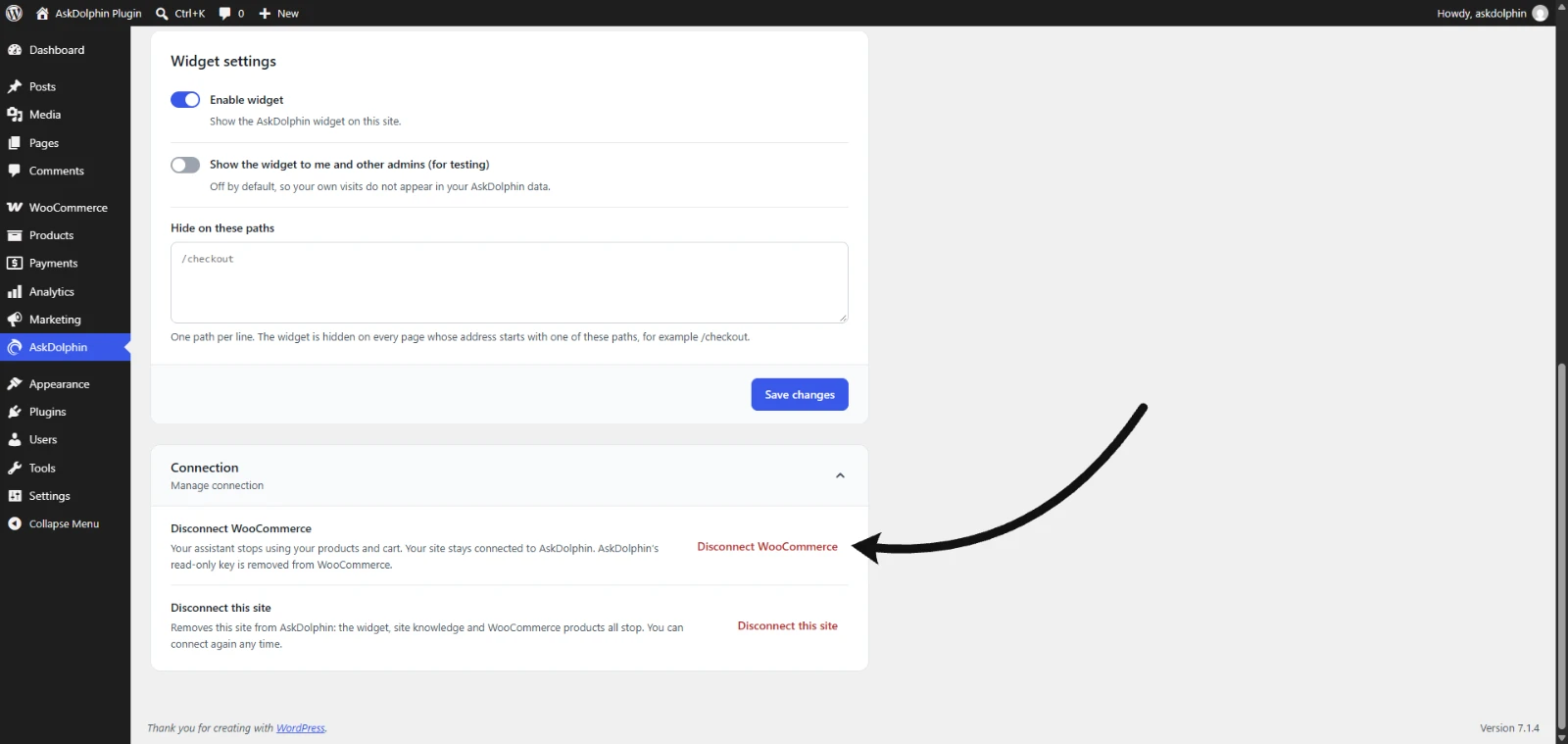
The Connection card on the AskDolphin page in WordPress, with an arrow pointing to Disconnect WooCommerce.

Your assistant stops using your products and cart, your products are removed from AskDolphin, and AskDolphin’s read-only key is removed from WooCommerce. Your site stays connected, so the chat and the AI’s knowledge of your pages keep working. You can connect WooCommerce again at any time.

To remove AskDolphin from your site completely, click Disconnect this site instead. See Install AskDolphin on WordPress.


Plans and billing

Selling your WooCommerce products in chat is included in AskDolphin’s plans. AskDolphin has a Free plan and a paid Pro plan. Plans are billed by AskDolphin, not by WooCommerce. See AskDolphin plans and prices.


Need help?

If your products don’t show in chat, make sure that:

  • You clicked Approve on WooCommerce’s screen

  • The WooCommerce products row shows Synced

  • The products are published and visible in WooCommerce

Then click Sync now. If you still need help, email us at support@askdolphin.com.

Frequently asked questions

Can AskDolphin change anything in my WooCommerce store?

No. You connect AskDolphin with Read access on WooCommerce’s own screen, so it can see your store but can never change it. It only uses your products and categories, and payment always happens in your WooCommerce checkout.

Which WooCommerce products does Dolphin AI show to visitors?

Only published, visible products. Drafts, private and hidden products stay out, and the WooCommerce products row on the AskDolphin page in WordPress tells you how many. Dolphin AI uses names, descriptions, prices, stock, images, categories and variations.

Can Dolphin AI add products to the cart?

Yes. When a visitor asks, Dolphin AI adds the product to their WooCommerce cart, can change the quantity or remove it, and never adds a sold-out option. When the visitor is ready, a checkout card opens your store’s own checkout.

How do I disconnect WooCommerce but keep the chat?

On the AskDolphin page in WordPress, open Manage connection and click Disconnect WooCommerce. Your assistant stops using your products and cart, but your site stays connected, so the chat and the AI’s knowledge of your pages keep working.

Why Use AskDolphin?Discover how AskDolphin transforms customer service through AI, automation, and real-time chat, helping you deliver faster, smarter, and more personalized support.Get Startedget-startedwhy-use-askdolphin1
Install AskDolphin on FramerInstalling AskDolphin on Framer is quick and straightforward. With the AskDolphin Framer plugin, you can connect your Framer website to your AskDolphin account, install the live chat widget, and start chatting with your website visitors.Install AskDolphininstall-askdolphininstall-askdolphin-on-framer2
Creating and Setting Up Your AccountWelcome to AskDolphin! This guide will help you take the first steps in setting up your account and using our platform to provide smarter, seamless customer support. By the end of this article, you’ll be ready to get started with AskDolphin and connect with your customers effortlessly.Get Startedget-startedcreate-account1
Install AskDolphin on WebflowConnecting AskDolphin to Webflow takes a few clicks and no code. Authorize your site, publish it to show the live chat, and train Dolphin AI on your pages so it can answer your visitors.Install AskDolphininstall-askdolphininstall-askdolphin-on-webflow2
Installing AskDolphin on Your Website (Overview)A quick overview of installing AskDolphin on your website, and which guide to follow for Shopify, Framer or any other site.Get Startedget-startedinstall-askdolphin-overview1
Install AskDolphin on WordPressInstalling AskDolphin on WordPress takes a few clicks and no code. Install the plugin, connect your site, and train Dolphin AI on your pages and posts so it can answer your visitors.Install AskDolphininstall-askdolphininstall-askdolphin-on-wordpress2
Start Using the AskDolphin PanelIn this article, we’ll guide you through the most important features of the AskDolphin panel. By the end, you’ll know how to easily navigate the platform, manage team operations, and provide excellent support to your customers.Get Startedget-startedstart-using-the-askdolphin-panel1
Sell your WooCommerce products with AskDolphinIf your WordPress site runs WooCommerce, AskDolphin can sell your products in chat. Dolphin AI answers about your products, adds them to the cart and sends visitors to your checkout.Install AskDolphininstall-askdolphinsell-woocommerce-products-with-askdolphin2
Unable to Log InThis article provides guidance on resolving common login problems and helping you regain access to your AskDolphin admin panel. Whether you've forgotten your password, misplaced your account email, or encountered the Trial Expired message, we're here to assist you.Get Startedget-startedunable-to-log-in1
Install AskDolphin on your WebsiteAdding AskDolphin to your website is quick and straightforward. You have two options to get started: installing the AskDolphin plugin on your web platform or adding the AskDolphin JavaScript code to your website's code.Install AskDolphininstall-askdolphininstall-askdolphin-on-your-website2
Install AskDolphin on ShopifyInstalling a live chat widget like AskDolphin helps you engage customers on your Shopify store. AskDolphin lets you sync your product catalog, enabling product-specific chats and giving Dolphin AI access to your product details so it can answer customer questions from them. This helps you provide a personalized shopping experience and improve communication efficiency.Install AskDolphininstall-askdolphininstall-askdolphin-on-shopify2
Contact AskDolphin SupportWhen you have questions or need assistance, the AskDolphin Support team is here to help! This guide will walk you through the available support options. Our goal is to ensure your experience with AskDolphin is seamless, efficient, and hassle-free.Get Startedget-startedcontact-askdolphin-support1
Uninstall AskDolphinThe uninstallation process of the AskDolphin widget varies depending on the platform your website uses. In this article, we will guide you through the most common uninstallation methods.Install AskDolphininstall-askdolphinuninstall-askdolphin2

Stop losing the quiet ones.

Install it in a minute. It starts working on your next visitor.

14 days, every feature.