Conversations
Shared Inbox Manage chat, email, and QR conversations together. Website Live Chat Support visitors with an AI and human widget. Email SupportNew Manage connected mailboxes with AI-assisted replies. Smart QR Codes Connect stores, products, and packaging to support.
AI and Automation
Dolphin AI Answer from approved knowledge with human control. AI Sales AssistantNew Recognize intent and suggest approved actions. Commerce ActionsNew Help customers complete supported Shopify actions. Human Control Control approvals, handover, and sensitive actions.
Intelligence and Knowledge
Session Replay & AnalyticsNew Replay journeys and understand visitor behaviour. AI Insights & ReportsNew Turn customer activity into clear recommendations. Data Sources Connect websites, products, FAQs, and knowledge. Help Center One content base for self-service and AI answers.
Product intro
AskDolphin Platform Connect conversations, AI, knowledge, and insights.
By business
Ecommerce & Shopify Support shoppers before and after every purchase. Retail & Omnichannel Connect support with stores, products, and QR. Agencies Manage client enquiries, email, and websites. Service Businesses Present services, capture leads, answer questions. Freelancers & Individuals Manage client email and enquiries with AI. Small & Growing Teams Bring conversations and teamwork into one place.
By goal
Customer Support Answer questions across chat, email, and QR. Sales & Conversion Engage intent and guide customers to action. Website Intelligence Find friction through sessions and behaviour. Shared Email Use AI-assisted email without needing a website. In-store & QR Support Give customers help in physical locations. Post-purchase Support Support orders and customers after purchase.
Solutions intro
View all solutions Find the right workflow for your business.
Learn
Blog Practical ideas for support, AI, and ecommerce. Product Updates See new features and product improvements.
Company
About AskDolphin Learn what AskDolphin is building and why. Partners Explore agency and partnership opportunities. Security Review our security and privacy information.
Conversations
Shared Inbox Manage chat, email, and QR conversations together. Website Live Chat Support visitors with an AI and human widget. Email SupportNew Manage connected mailboxes with AI-assisted replies. Smart QR Codes Connect stores, products, and packaging to support.
AI and Automation
Dolphin AI Answer from approved knowledge with human control. AI Sales AssistantNew Recognize intent and suggest approved actions. Commerce ActionsNew Help customers complete supported Shopify actions. Human Control Control approvals, handover, and sensitive actions.
Intelligence and Knowledge
Session Replay & AnalyticsNew Replay journeys and understand visitor behaviour. AI Insights & ReportsNew Turn customer activity into clear recommendations. Data Sources Connect websites, products, FAQs, and knowledge. Help Center One content base for self-service and AI answers.
Product intro
AskDolphin Platform Connect conversations, AI, knowledge, and insights.
By business
Ecommerce & Shopify Support shoppers before and after every purchase. Retail & Omnichannel Connect support with stores, products, and QR. Agencies Manage client enquiries, email, and websites. Service Businesses Present services, capture leads, answer questions. Freelancers & Individuals Manage client email and enquiries with AI. Small & Growing Teams Bring conversations and teamwork into one place.
By goal
Customer Support Answer questions across chat, email, and QR. Sales & Conversion Engage intent and guide customers to action. Website Intelligence Find friction through sessions and behaviour. Shared Email Use AI-assisted email without needing a website. In-store & QR Support Give customers help in physical locations. Post-purchase Support Support orders and customers after purchase.
Solutions intro
View all solutions Find the right workflow for your business.
Learn
Blog Practical ideas for support, AI, and ecommerce. Product Updates See new features and product improvements.
Company
About AskDolphin Learn what AskDolphin is building and why. Partners Explore agency and partnership opportunities. Security Review our security and privacy information.
Help centre articles

Uninstall AskDolphin

The uninstallation process of the AskDolphin widget varies depending on the platform your website uses. In this article, we will guide you through the most common uninstallation methods.

Updated

uninstall-askdolphininstall-askdolphinPublicIndexShopify Apps and sales channels page with an arrow highlighting the AskDolphin: Live Chat & AI Support app entry and remove button.

To uninstall AskDolphin, remove the app or plugin from the platform your website runs on (Shopify or Framer), or delete the AskDolphin JavaScript code from your website if you installed it manually. If you are on a paid plan, cancel it first in the Billing section of your AskDolphin panel.

In this article, you’ll learn:

  • How to uninstall the AskDolphin app or plugin

  • How to remove the AskDolphin JavaScript code

If you want to temporarily hide the AskDolphin chat widget without completely uninstalling it, go to Settings > Channels > Live Chat widget in your AskDolphin panel and switch off the Enable Live Chat widget toggle. This will ensure your website visitors cannot see the chat widget.


Note: Before proceeding with the uninstallation, please ensure you have cancelled any active paid plans. To cancel or check the status of your plans, navigate to the Billing section in your AskDolphin admin panel.


Uninstall the AskDolphin Shopify App

If you installed AskDolphin from the Shopify App Store, follow the steps below to remove it. If your website is built on Framer, see Install AskDolphin on Framer, which explains how to remove the widget with the AskDolphin plugin.


Note: If, after deleting the AskDolphin plugin, you still see the chat widget on your website, it is likely that you also added the AskDolphin JavaScript code manually during installation. In such cases, removing this code from your website’s backend will also be required.


Uninstalling AskDolphin from Shopify

Before deleting the AskDolphin Shopify app, you must disable it within your Shopify store. Open your Shopify admin panel and navigate to Online Store > Themes. Select the theme you want to edit and click Customize.
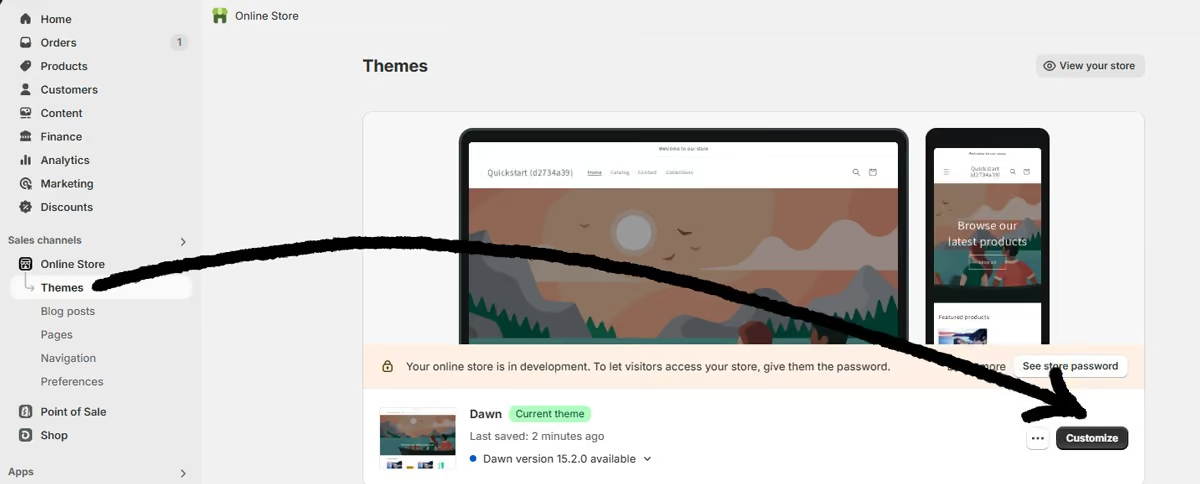
Shopify Themes page with an arrow from Themes in the sidebar to the Customize button on the current theme.


Click on Theme settings and then open the App embeds tab.
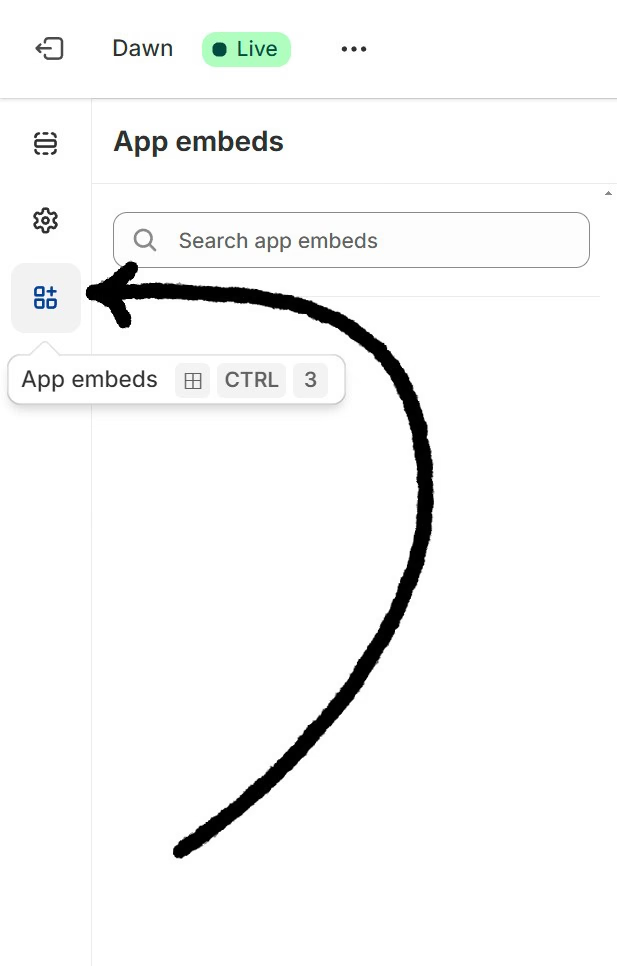
Shopify theme customization panel with an arrow pointing to the App embeds tab.


Locate the AskDolphin Chat Widget by scrolling through the list of installed apps or using the search bar.
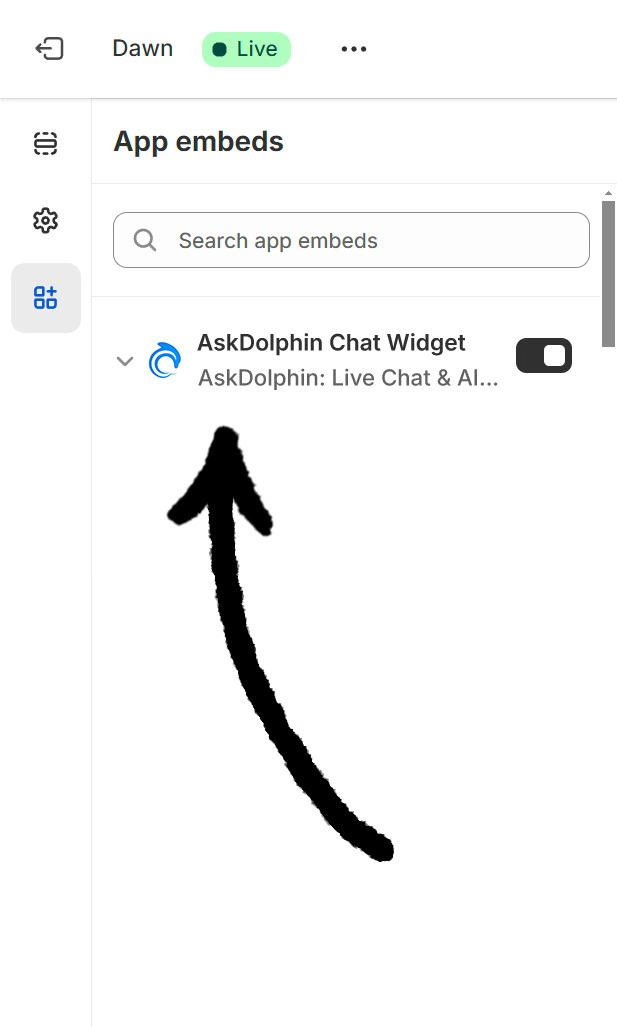
App embeds list in Shopify theme editor with an arrow pointing to the AskDolphin Chat Widget option.


Next to the AskDolphin Chat Widget, you’ll see a toggle button. Switch the toggle to OFF to disable the widget on your store.
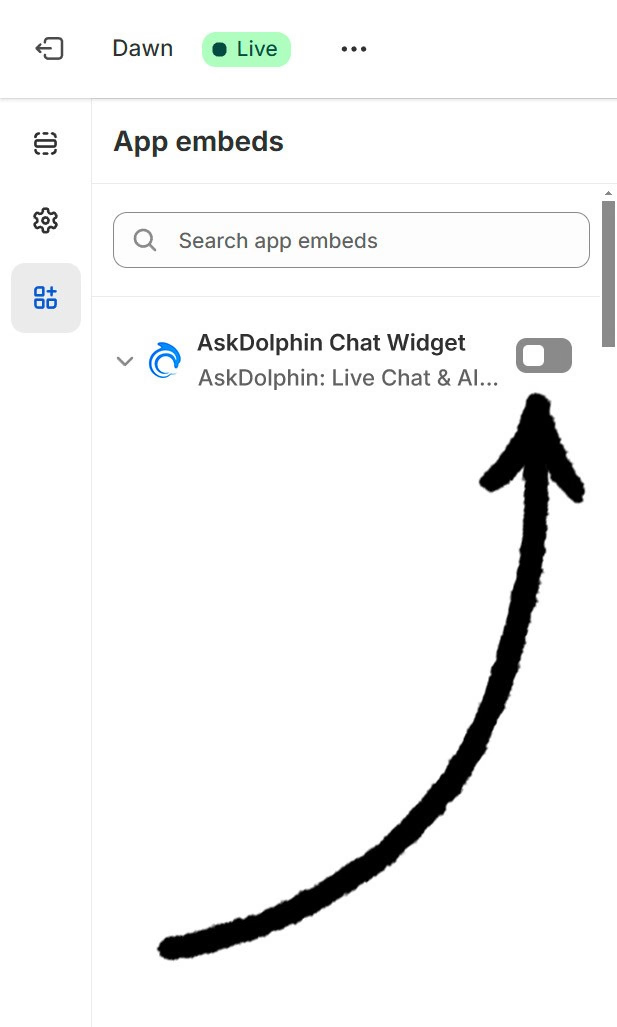
Shopify App embeds panel with an arrow pointing at the toggle switch to disable the AskDolphin Chat Widget.


Click Save to finalize your changes. The AskDolphin Chat Widget will now be removed from your Shopify store.


Note: If you uninstalled the AskDolphin widget before disabling it and you still see the widget on your website, you need to reinstall the AskDolphin: Live Chat & AI, disable it as outlined in the previous steps, and then safely delete it again.


To do this, Open your Shopify admin panel, navigate to the Apps section, and select App and sales channel settings.
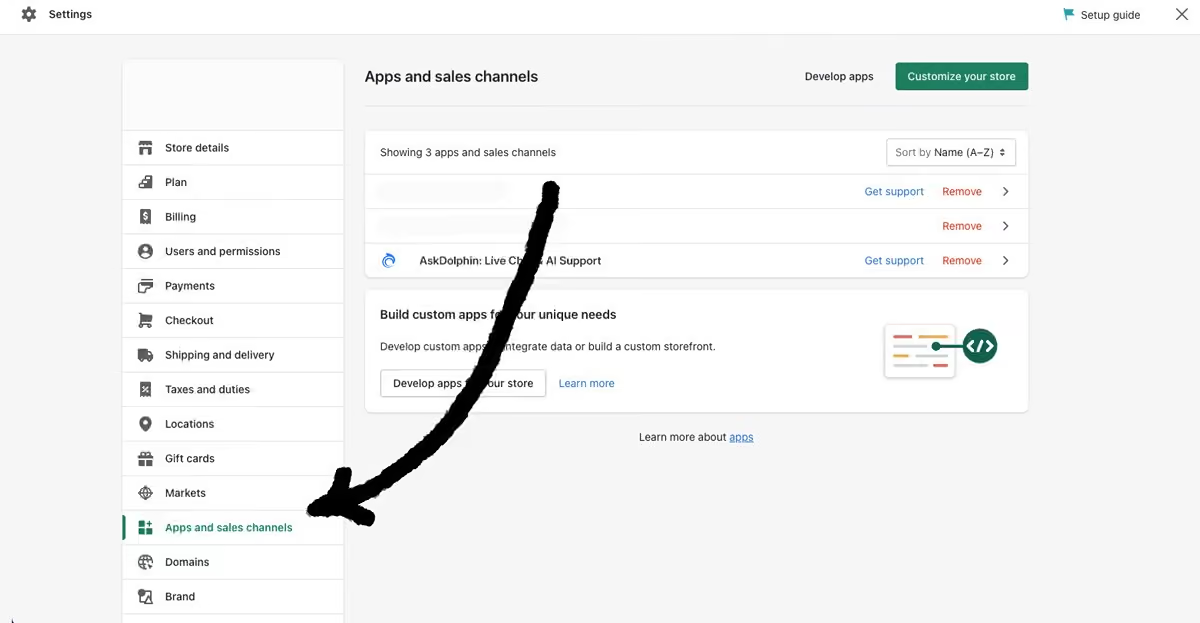
Shopify settings dashboard with an arrow pointing to the Apps and sales channels section that displays the AskDolphin app.


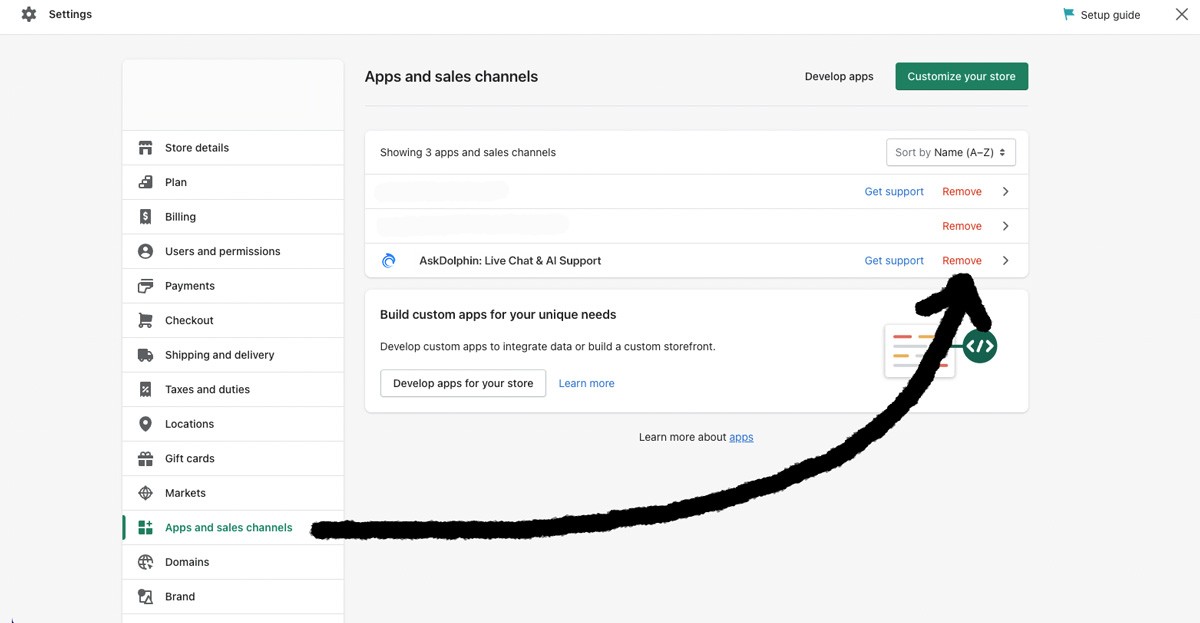
In the list of installed apps, find AskDolphin: Live Chat & AI. Click on the red Remove button next to the app name.
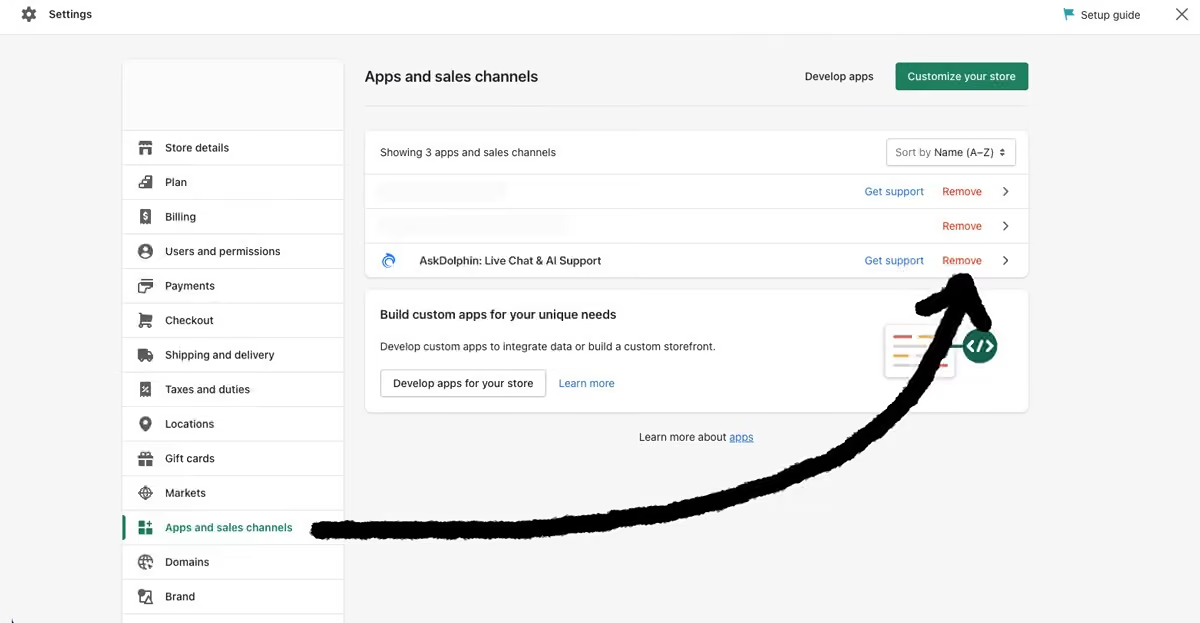
Shopify Apps and sales channels page with an arrow highlighting the AskDolphin: Live Chat & AI Support app entry and remove button.


A prompt will appear asking for the reason for deletion. Select the appropriate reason and confirm the removal by clicking the red Delete button. The AskDolphin Chat Widget will now be removed from your store.


Removing the app from the Shopify admin does not necessarily remove the code that was injected into your theme during the installation. If you still see remnants of the widget in your website's source code, follow the AskDolphin JavaScript Uninstallation Process outlined in the JavaScript section of this guide.


JavaScript Code Uninstallation

If you installed the AskDolphin Chat Widget via JavaScript code, you will need to delete the code from your website's source to fully remove the widget. We recommend placing the AskDolphin code above the closing </body> tag during installation, so you’ll find it in this location when removing it.


Shopify

To delete the AskDolphin JavaScript code from your Shopify website:


Open your Shopify admin panel, navigate to the Online Store tab, and locate the Themes section.
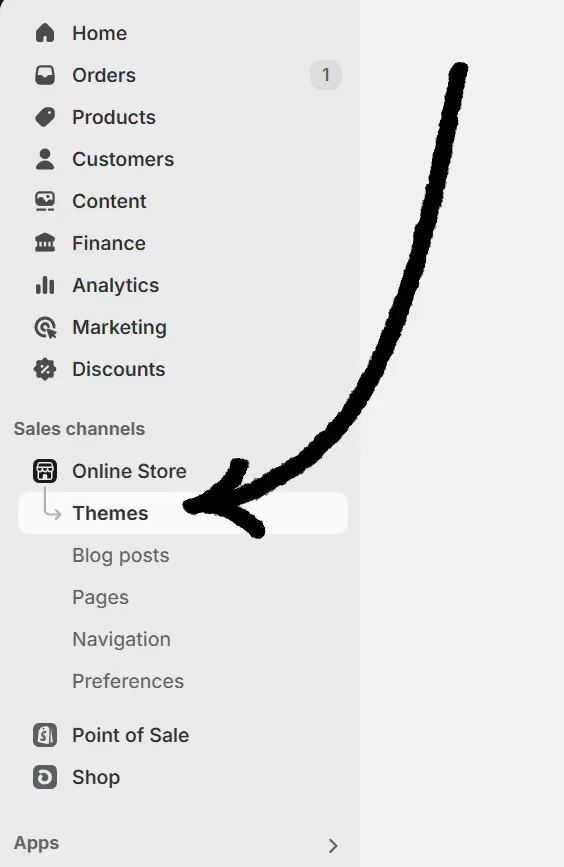
Shopify admin sidebar with an arrow pointing to the Themes menu under Online Store


Under the Themes section, find the active theme you’re using, then click the three dots menu next to the Customize button and select Edit Code. This will open the code editor in a separate tab.
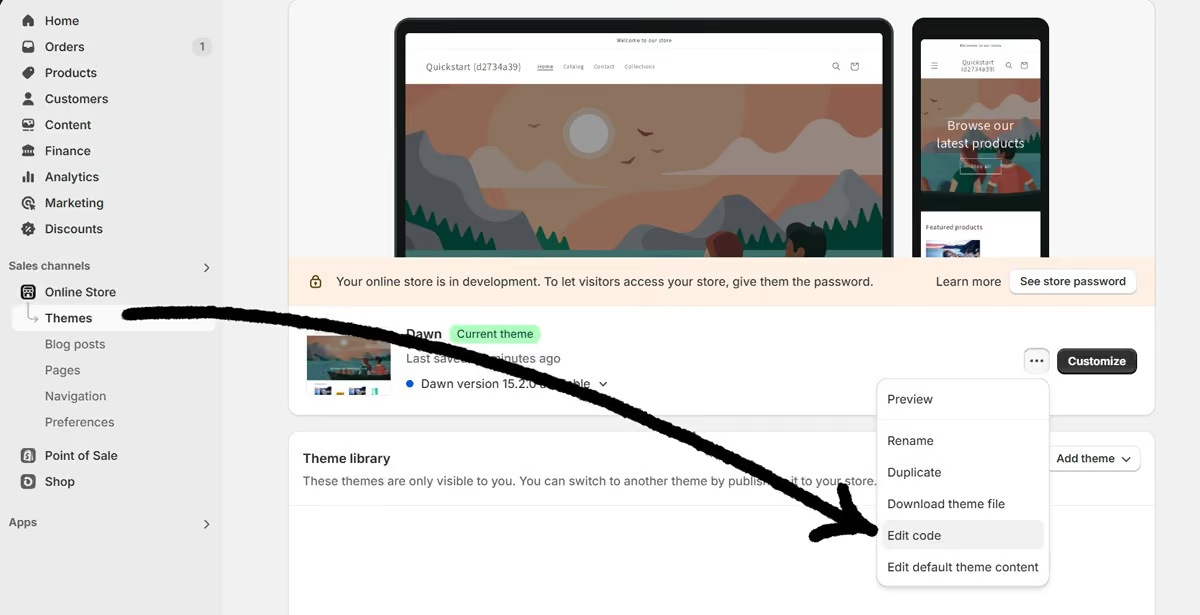
Shopify Themes page with an arrow indicating the Edit code option.


In the code editor, navigate to the Layout folder and open the theme.liquid file.
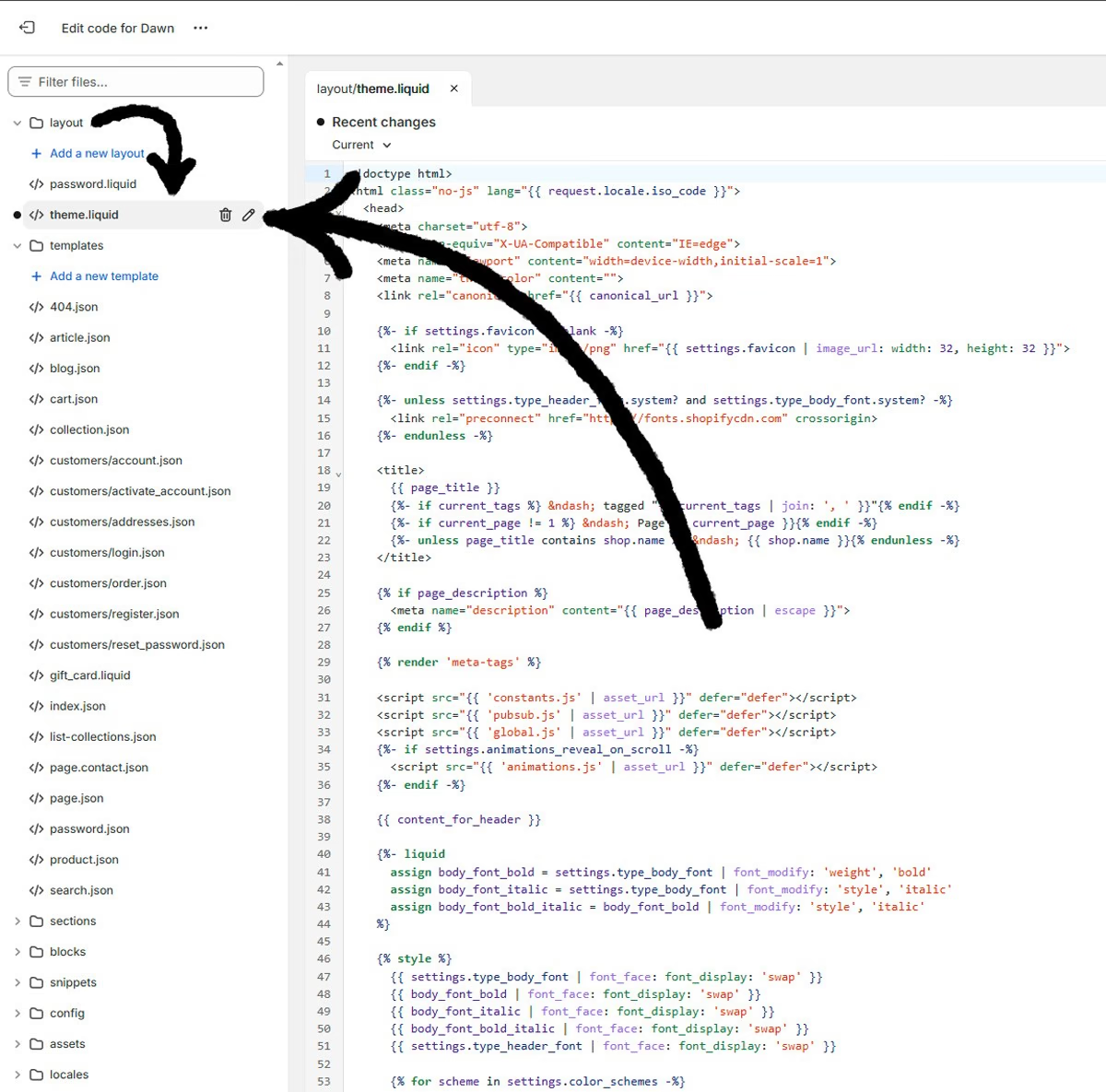
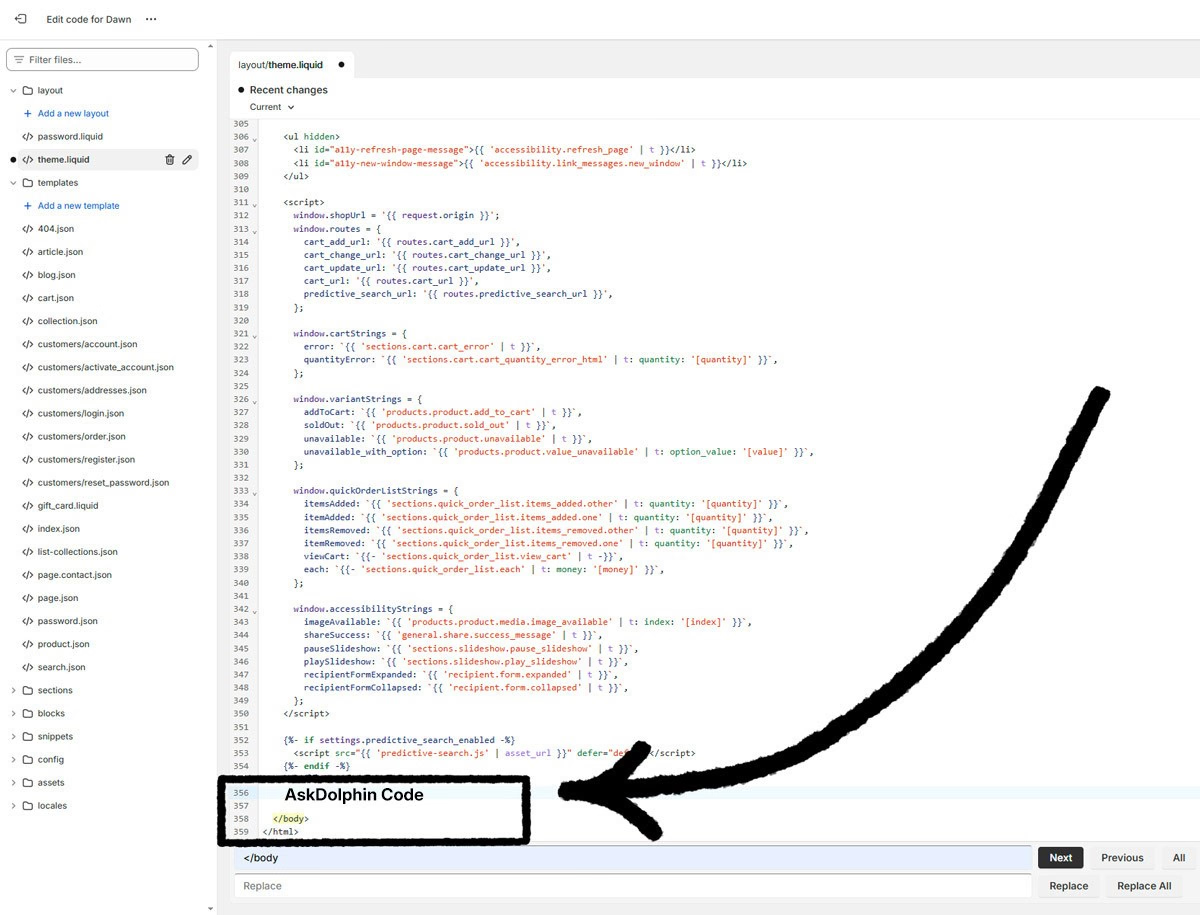
Shopify theme code editor showing the layout folder and theme.liquid file selected, with an arrow pointing to open the file and edit code.


Scroll to the bottom of the file and search for the AskDolphin JavaScript code snippet. It should be located above the closing </body> tag.

Tip: Use your browser’s search tool to locate the code more quickly:


On Mac: Press Command + F

On Windows: Press Ctrl + F


Search for the term askdolphin or the <script> tag containing the AskDolphin code.


Shopify theme.liquid file opened in the code editor with an arrow pointing to the </body> section where the AskDolphin script should be removed.


Once you find the code, delete it completely. The code snippet typically looks like this:

<script src="https://code.askdolphin.com/code/index.js" identifyCode="your-identify-code"></script>


If you previously removed the app but still see leftover code, it may look something like this:

Shopify error message showing “Failed to render app block” indicating a missing or invalid AskDolphin app embed path.


After deleting the code, click the Save button to finalize the changes.
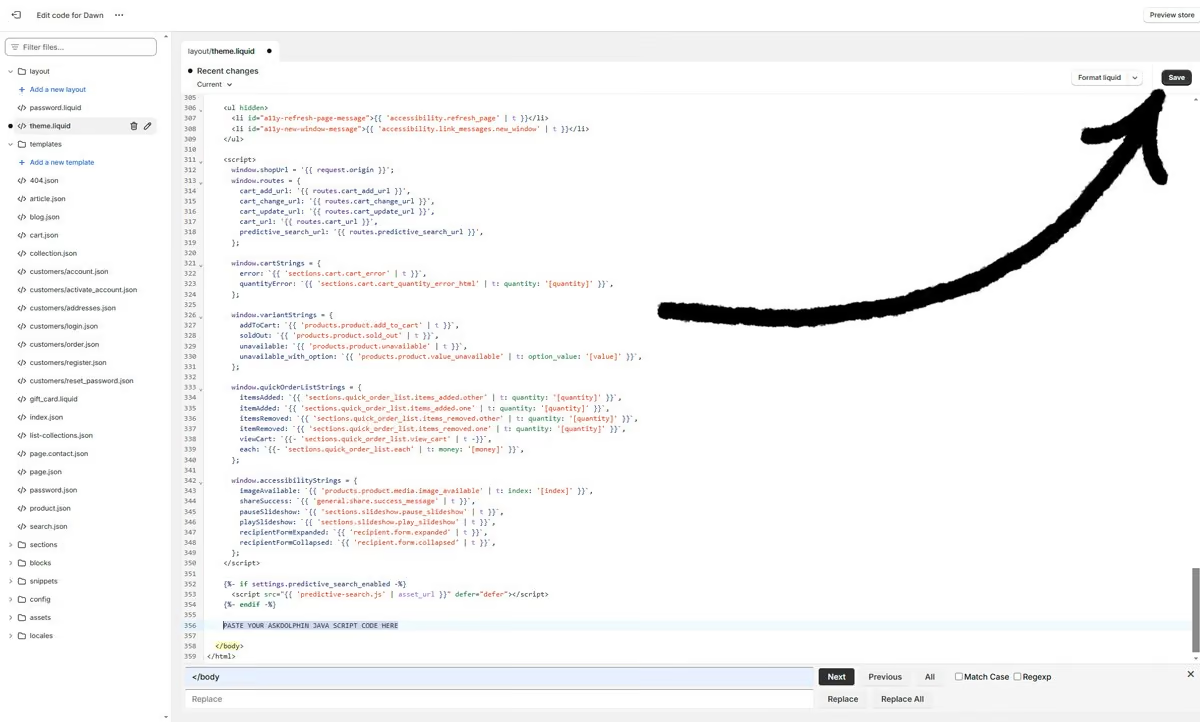
Shopify code editor with an arrow pointing to the Save button after removing the AskDolphin JavaScript code.


Refresh your website and check if the AskDolphin widget has been completely removed.

Once you have deleted all instances of the AskDolphin JavaScript code from your website’s source, the chat widget will be fully removed from your Shopify store.


Uninstallation for Other Platforms

To fully delete the AskDolphin Chat Widget from platforms other than Shopify, follow the steps below:


Step 1: Access Your Website Files

Access the server where your website is hosted using a file manager or log in to your platform's dashboard with tools that allow file modification.


Step 2: Locate the Relevant Files

Depending on how your website is built, look for files with .html or .php extensions. Typically, this will be index.html or index.php, but other subpage files might also include the code.
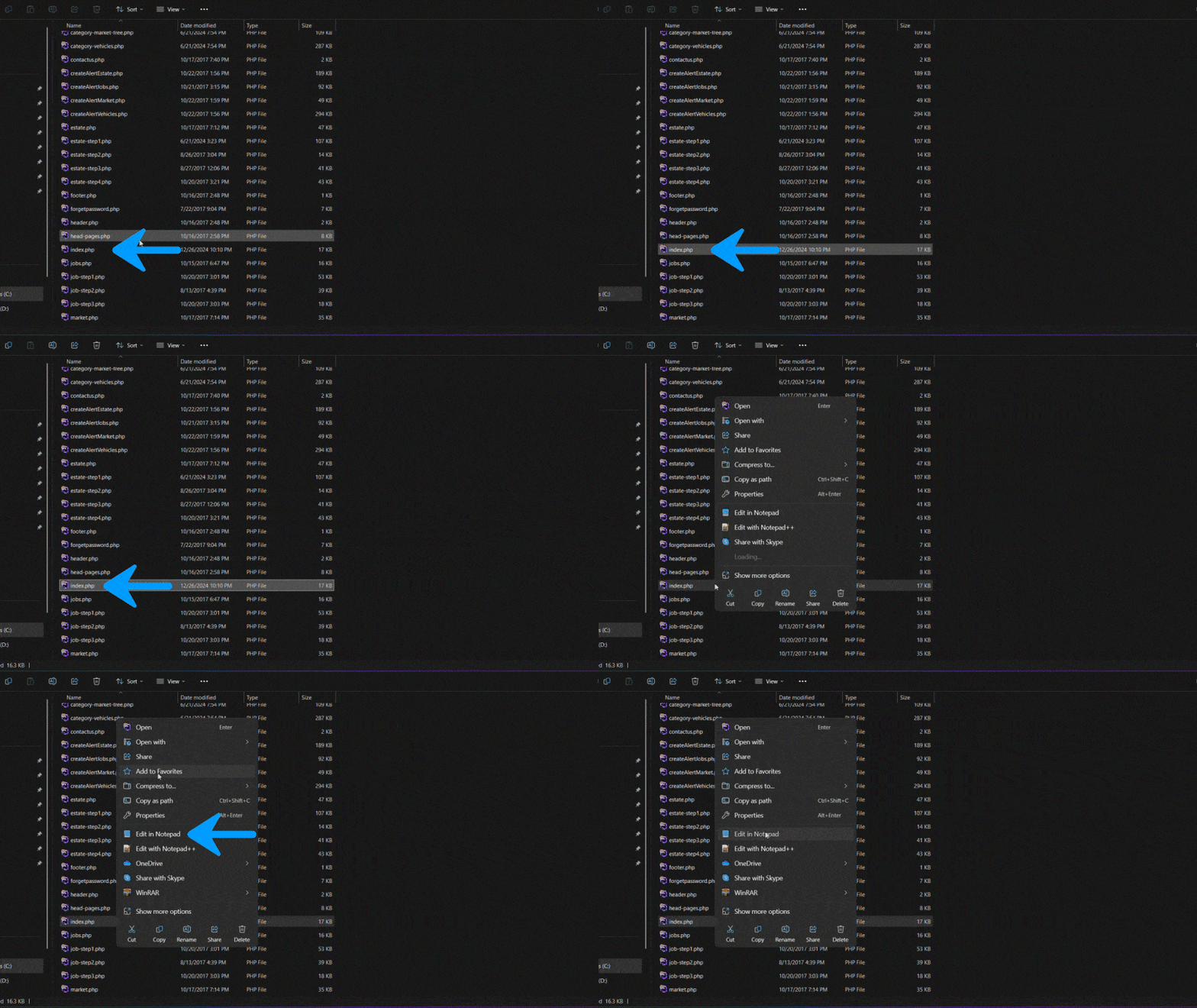
file manager screen with an arrow pointing to index.php, highlighting where to locate the correct file.

Note: If you’re unsure where the AskDolphin code was added, reach out to your web designer or platform support team for assistance.


Step 3: Find the AskDolphin Code

Open the relevant file and scroll to the bottom to locate the closing </body> tag. The AskDolphin code is usually placed right above this tag.

Tip: Use your browser's search functionality to quickly find the code:


On Mac: Press Command + F

On Windows: Press Ctrl + F


Search for the term askdolphin or <script>.


Step 4: Delete the Code

Once located, remove the entire AskDolphin code snippet. The snippet typically looks like this:

<script src="https://code.askdolphin.com/code/index.js" identifyCode="your-identify-code"></script>


Step 5: Save Your Changes

After removing the code, click Save or Update File to finalize your changes.


Step 6: Verify the Removal

Refresh your website and ensure the AskDolphin chat widget is no longer visible.


If you encounter any issues while deleting the AskDolphin code or are unable to find where the code was added, please don’t hesitate to contact our support team at support@askdolphin.com

Frequently asked questions

Can I hide the widget without uninstalling AskDolphin?

Yes. Go to Settings > Channels > Live Chat widget in your AskDolphin panel and switch off the Enable Live Chat widget toggle.

Should I cancel my plan before uninstalling?

Yes. Cancel any active paid plan first from the Billing section of your AskDolphin admin panel.

I deleted the Shopify app, but the widget is still showing. Why?

You probably also added the AskDolphin JavaScript code to your theme, so remove it from theme.liquid. If you deleted the app before turning off its app embed, reinstall the app, turn the embed off, and then delete the app again.

How do I find the AskDolphin code in my website files?

Open the file that contains the closing </body> tag, often index.html or index.php, and search for askdolphin with Ctrl + F or Command + F. Delete the whole script, then save the file.

Why Use AskDolphin?Discover how AskDolphin transforms customer service through AI, automation, and real-time chat, helping you deliver faster, smarter, and more personalized support.Get Startedget-startedwhy-use-askdolphin1
Install AskDolphin on FramerInstalling AskDolphin on Framer is quick and straightforward. With the AskDolphin Framer plugin, you can connect your Framer website to your AskDolphin account, install the live chat widget, and start chatting with your website visitors.Install AskDolphininstall-askdolphininstall-askdolphin-on-framer2
Creating and Setting Up Your AccountWelcome to AskDolphin! This guide will help you take the first steps in setting up your account and using our platform to provide smarter, seamless customer support. By the end of this article, you’ll be ready to get started with AskDolphin and connect with your customers effortlessly.Get Startedget-startedcreate-account1
Install AskDolphin on your WebsiteAdding AskDolphin to your website is quick and straightforward. You have two options to get started: installing the AskDolphin plugin on your web platform or adding the AskDolphin JavaScript code to your website's code.Install AskDolphininstall-askdolphininstall-askdolphin-on-your-website2
Installing AskDolphin on Your Website (Overview)A quick overview of installing AskDolphin on your website, and which guide to follow for Shopify, Framer or any other site.Get Startedget-startedinstall-askdolphin-overview1
Install AskDolphin on ShopifyInstalling a live chat widget like AskDolphin helps you engage customers on your Shopify store. AskDolphin lets you sync your product catalog, enabling product-specific chats and giving Dolphin AI access to your product details so it can answer customer questions from them. This helps you provide a personalized shopping experience and improve communication efficiency.Install AskDolphininstall-askdolphininstall-askdolphin-on-shopify2
Start Using the AskDolphin PanelIn this article, we’ll guide you through the most important features of the AskDolphin panel. By the end, you’ll know how to easily navigate the platform, manage team operations, and provide excellent support to your customers.Get Startedget-startedstart-using-the-askdolphin-panel1
Uninstall AskDolphinThe uninstallation process of the AskDolphin widget varies depending on the platform your website uses. In this article, we will guide you through the most common uninstallation methods.Install AskDolphininstall-askdolphinuninstall-askdolphin2
Unable to Log InThis article provides guidance on resolving common login problems and helping you regain access to your AskDolphin admin panel. Whether you've forgotten your password, misplaced your account email, or encountered the Trial Expired message, we're here to assist you.Get Startedget-startedunable-to-log-in1
Contact AskDolphin SupportWhen you have questions or need assistance, the AskDolphin Support team is here to help! This guide will walk you through the available support options. Our goal is to ensure your experience with AskDolphin is seamless, efficient, and hassle-free.Get Startedget-startedcontact-askdolphin-support1

Stop losing the quiet ones.

Install it in a minute. It starts working on your next visitor.

14 days, every feature.